> For the complete documentation index, see [llms.txt](https://docs.2checkout.com/llms.txt). Markdown versions of documentation pages are available by appending `.md` to page URLs; this page is available as [Markdown](https://docs.2checkout.com/analytics/analytics/implement-facebook-pixel-in-default-carts-through-google-tag-manager.md).
# Implement Facebook Pixel in Default Carts through Google Tag Manager
## A. Create a tag for Facebook Pixel Page View Initialization
Create this tag if you don’t already have a Facebook Pixel tag on your website that fires on all pages where you have the Google Tag Manager code.
{% stepper %}
{% step %}
### Create Page View tag
* Click to create a new tag.
* As Tag Type select **Custom HTML**. In the script below, under '{your-pixel-id-goes-here}' type your Facebook pixel ID. The script below is the Pixel Base Code and can be found in the [Facebook/Meta Pixel](https://developers.facebook.com/docs/meta-pixel/get-started/) documentation.
{% code title="Facebook Pixel Base Code" %}
```
```
{% endcode %}
```html
```
* As Triggering select **All Pages**.

{% endstep %}
{% endstepper %}
## B. Configure dataLayer variables in Google Tag Manager
Configure dataLayer variables in Google Tag Manager to further use them in the Facebook implementation.
2checkout shopping carts contain a dataLayer with eCommerce information on the Google Analytics 4 structure. You can view this by typing `dataLayer` into the browser console and under `gtag4` you can see the eCommerce information on Google Analytics 4 structure both at checkout and at purchase on the order Finish page.

{% stepper %}
{% step %}
### Configure dataLayer variables in Google Tag Manager
To capture the eCommerce information from the dataLayer, create the following User-Defined Variables in Google Tag Manager. For each variable:
* Click to create a new User-Defined Variable.
* As Variable Type select **Data Layer Variable**.
* Under Data Layer Variable Name use the name below.
* Under Data Layer Version select **Version 2**.
Create the following variables:
* Name: `gtag4.event` — Data Layer Variable Name: `gtag4.event`.  
* Name: `gtag4.currency` — Data Layer Variable Name: `gtag4.currency`. 
* Name: `gtag4.items` — Data Layer Variable Name: `gtag4.items`. 
* Name: `gtag4.tax` — Data Layer Variable Name: `gtag4.tax`. 
* Name: `gtag4.transaction_id` — Data Layer Variable Name: `gtag4.transaction_id`. 
* Name: `gtag4.value` — Data Layer Variable Name: `gtag4.value` (captures total order value, including tax). 
{% endstep %}
{% endstepper %}
## C. Create a User-defined variable in Google Tag Manager for Facebook called FacebookEventsScript
{% stepper %}
{% step %}
### Create the FacebookEventsScript variable
1. Click on **New** to create a new user-defined-variable.

2. As Variable Type select **Custom JavaScript**.
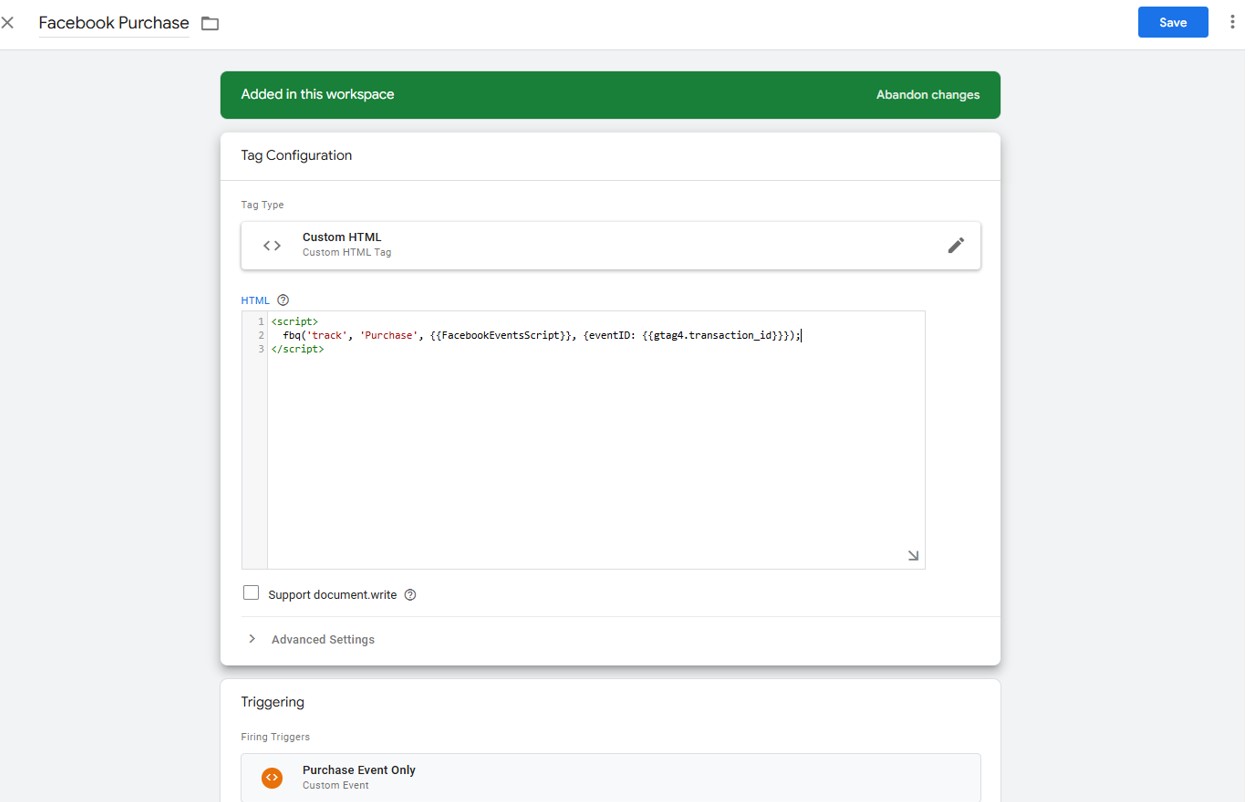
3. In the Custom JavaScript section paste the code below. This code will capture product, transaction id and transaction value data, using the dataLayer variables previously created.
{% code title="FacebookEventsScript (Custom JavaScript variable)" %}
```
```
{% endcode %}
```javascript
function(){
var attr = {};
attr.currency = {{gtag4.currency}};
attr.content_type = "product";
var fbContents = [];
var fbIds = [];
var fbNames = [];
//function fbData
var fbData = function() {
attr.num_items = {{gtag4.items}}.length;
for(var i=0;i<{{gtag4.items}}.length;i++){
fbContents.push({
'id':{{gtag4.items}}[i].item_id,
'name':{{gtag4.items}}[i].item_name,
'quantity':{{gtag4.items}}[i].quantity
});
fbIds.push({{gtag4.items}}[i].item_id);
fbNames.push({{gtag4.items}}[i].item_name);
}
attr.contents = fbContents;
attr.content_ids = fbIds;
attr.content_name = fbNames;
};
if ({{gtag4.event}} === 'begin_checkout' && window.omniture_vars && window.omniture_vars.CART_PRODUCTS){
var checkoutValue=0;
var checkoutCartProducts = omniture_vars.CART_PRODUCTS;
for (var i=0; i
fbq('track', 'Purchase', {{FacebookEventsScript}}, {eventID: {{gtag4.transaction_id}}});
```
4. For Triggering, select the trigger restricted to the purchase event (Purchase Event Only).
{% endstep %}
{% endstepper %}
## Optional — send information with the Facebook Pixel at checkout if needed
Create a trigger specifically for the checkout event
{% stepper %}
{% step %}
### Create Checkout Event trigger
Create a new trigger named **Checkout Event Only**.
* As Trigger Type select **Custom Event**.
* As Event name type **2checkout event**.
* For this trigger to fire on, select **Some Custom Events**.
* Add the condition that variable `gtag4.event` equals `checkout`.

{% endstep %}
{% step %}
### Create Facebook Checkout tag
1. Create a new tag (for example: Facebook Checkout).
2. As Tag Type select **Custom HTML**.
3. In the HTML section, paste the following code:
{% code title="Facebook Checkout tag (Custom HTML)" %}
```
```
{% endcode %}
```html
```
4. For Triggering, select the trigger restricted to the checkout event (Checkout Event Only).

{% endstep %}
{% endstepper %}
Privacy/consent note
The tags for Facebook Pixel need to be based on consent. Adjust the tags described above to condition them based on your method of collecting consent.
---
# Agent Instructions
This documentation is published with GitBook. GitBook is the documentation platform designed so that both humans and AI agents can read, navigate, and reason over technical content effectively. Learn more at gitbook.com.
## Querying This Documentation
If you need additional information that is not directly available in this page, you can query the documentation dynamically by asking a question.
Perform an HTTP GET request on the current page URL with the `ask` query parameter:
```
GET https://docs.2checkout.com/analytics/analytics/implement-facebook-pixel-in-default-carts-through-google-tag-manager.md?ask=
```
The question should be specific, self-contained, and written in natural language.
The response will contain a direct answer to the question and relevant excerpts and sources from the documentation.
Use this mechanism when the answer is not explicitly present in the current page, you need clarification or additional context, or you want to retrieve related documentation sections.