# Integrate AbanteCart
## Availability
AbanteCart integration is available only for 2Checkout accounts that handle their own tax and invoice management (2Sell and 2Subscribe accounts).
#### AbanteCart Settings:
1. Login to your AbanteCart admin.
2. Under the **Extensions** menu, click **Payments** and select 2Checkout.
3. Under **Payment Gateways** select 2Checkout.
4. Enter your **2Checkout Account ID**.
5. Enter your **INS** **Secret Word** (Must be the same value entered on your 2Checkout Control Panel.) To obtain the INS Secret Word, log in to your 2Checkout Control Panel and navigate to *Dashboard → Integrations → Webhooks & API → Secret Word → INS Secret word*. Your **INS secret word** should be the same as the **buy-link secret word** (can be found in your Merchant Control Panel, under *Dashboard → Integrations → Webhooks & API*, scroll down to the Secret Word area, under the INS Secret Word). Edit your INS secret word and buy-link secret word to match each other, then copy and paste them into your AbanteCart admin.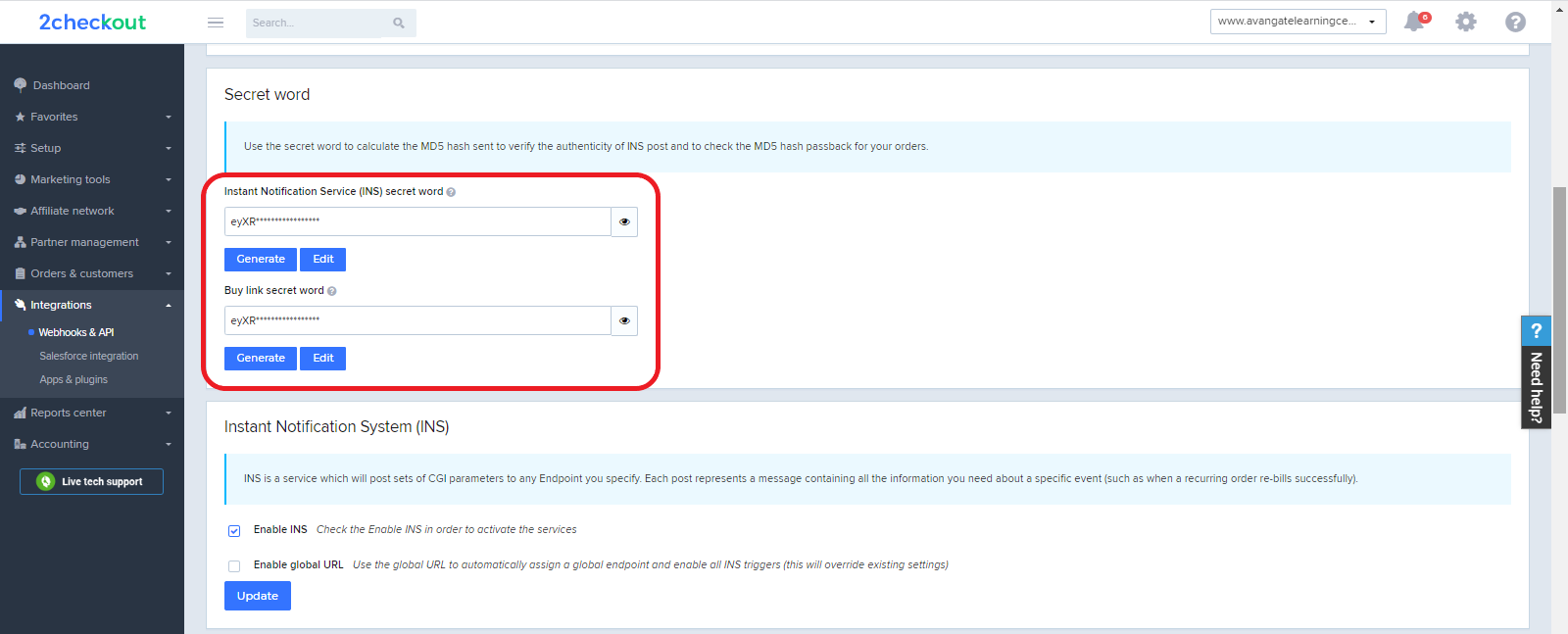
6. Under **Test mode**, select live sales or testing for demo sales.
7. Under **Order Status**, select Completed.
8. Save your changes.
#### 2Checkout Settings:
1. Sign in to your 2Checkout account.
2. Navigate to *Dashboard → Integrations → Webhooks & API*
3. Follow these steps to activate Redirect URL:
* In the **Redirect URL** section check **“Enable return after sale”**
* For Return method, select **Link in the Thank You Page** or **Header redirect**
* Set the **Approved URL** to the URL provided in your AbanteCart admin (Replace [http://yourdomain.com](http://yourdomain.com/) with the actual URL to your domain)
* Click **Update** to **save** your settings
4. In the **Webhooks and API** section, under the **Instant Notification Service (INS)** card, check the **Enable Global URL** box.
5. Enter the Notifications URL provided in your AbanteCart admin as the global endpoint URL.
6. Click **Update** to save your changes.
## About AbanteCart
AbanteCart is a shopping cart and eCommerce application that is not only one the best and technologically advanced around, but it is also completely free, thanks to donations and contributions from satisfied users and sponsors. AbanteCart’s solution enables small to medium-sized online businesses to have a complete, multifunction eCommerce platform for absolutely no fees or subscription charges.
AbanteCart is built with unique and innovative architecture and has been designed with the user in mind. This enables people with little or no experience to use AbanteCart almost instantly. AbanteCart has also been designed with experienced users in mind and provides advanced tools with greater UI. Users do not need any programming skills, knowledge of code, or previous cart experience to use applications.
In addition to a great user interface, AbanteCart’s core code is flexible and empowered with a special extension API to allow expandability to any specific and demanding eCommerce requirement. With this in mind, properly extended AbanteCart applications can be upgraded in the future without any hassle.
AbanteCart has rapidly become popular among small to medium-sized merchants and continues to introduce new features and extensions every day.
For more information visit: [AbanteCart.com](http://www.abantecart.com/)
---
# Agent Instructions: Querying This Documentation
If you need additional information that is not directly available in this page, you can query the documentation dynamically by asking a question.
Perform an HTTP GET request on the current page URL with the `ask` query parameter:
```
GET https://docs.2checkout.com/connectors/connectors/integrate-abantecart.md?ask=
```
The question should be specific, self-contained, and written in natural language.
The response will contain a direct answer to the question and relevant excerpts and sources from the documentation.
Use this mechanism when the answer is not explicitly present in the current page, you need clarification or additional context, or you want to retrieve related documentation sections.