> For the complete documentation index, see [llms.txt](https://docs.2checkout.com/llms.txt). Markdown versions of documentation pages are available by appending `.md` to page URLs; this page is available as [Markdown](https://docs.2checkout.com/connectors/connectors/integrate-akeeba-subscriptions.md).
# Integrate Akeeba Subscriptions
## Availability
Akeeba Subscriptions integration is available only for 2Checkout accounts that handle their own tax and invoice management (2Sell and 2Subscribe accounts).
#### Akeeba Subscriptions Settings:
1. Login to your Joomla admin.
2. Under Extensions click **Plugin Manager**.
3. Select “**Akeeba Subscriptions Payment – 2Checkout Standard Purchase Routine**”
4. Under Status select **Enabled**.
5. Enter your **Payment Option Title**.
6. Enter your [**2Checkout Merchant code**](https://secure.2checkout.com/cpanel/account.php).
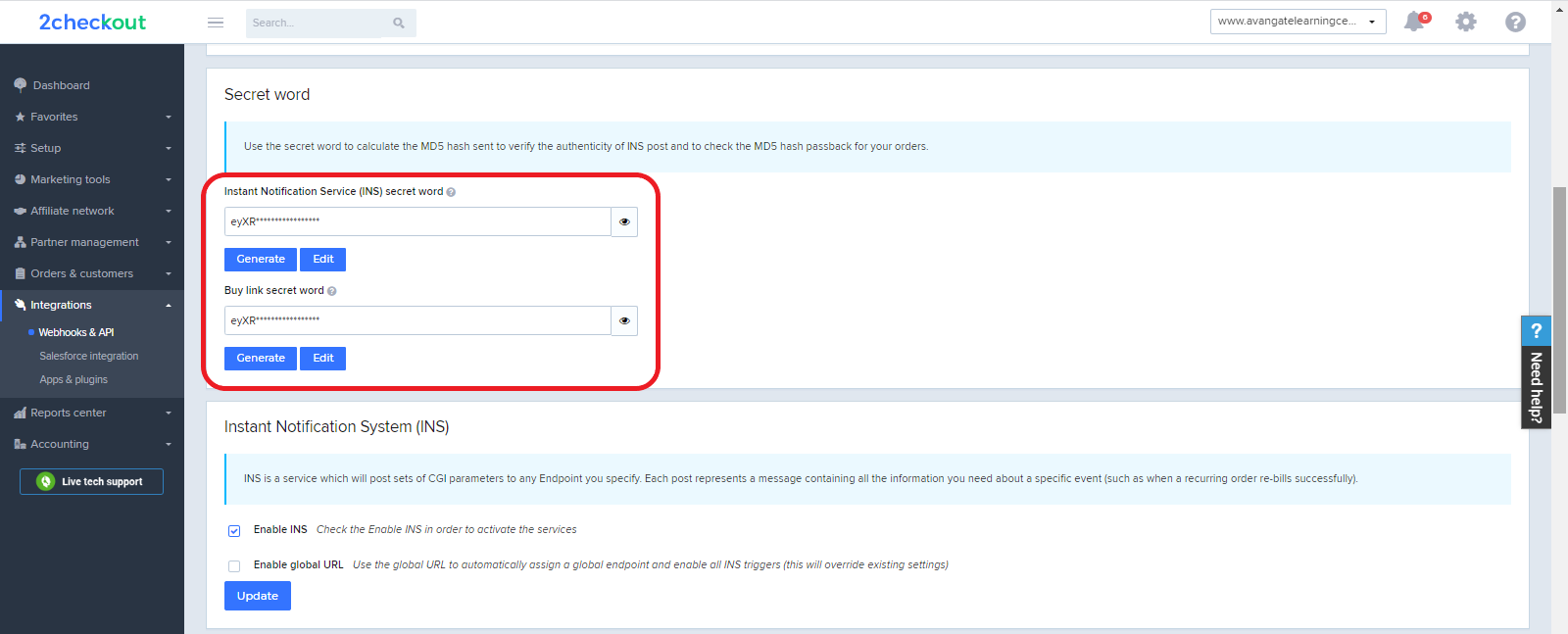
7. Enter in your **Secret Word** (set on 2Checkout Control Panel.) To obtain the Secret Word**, c**ontact 2Checkout or, if you already have a 2Checkout account, log in to your Merchant Control Panel and navigate to *Dashboard → Integrations → Webhooks & API → Secret Word → INS Secret word*. Your **INS secret word** should be the same as the **buy-link secret word** (can be found under *Dashboard → Integrations → Webhooks & API*, scroll down to the Secret Word area, under the INS Secret Word). Edit your INS secret word and buy-link secret word to match each other, then copy and paste them into your Akeeba admin.\
8. Under Demo mode select **No**.
9. Select whether or not you will be placing demo sales. (INS messages are not sent on demo sales so all demo sales will have a payment status of New and will not be enabled.)
10. Select the **default payment method** for your buyers on the checkout page.
11. Under Checkout Process select **Single Page**.
12. **Save** your changes.
#### 2Checkout Settings:
1. Sign in to your 2Checkout account.
2. Navigate to *Dashboard → Integrations → Webhooks & API*
3. Follow these steps to activate Redirect URL:
* In the **Redirect URL** section check **“Enable return after sale”**
* For Return method, select **Link in the Thank You Page** or **Header redirect**
* Set the **Approved URL** to the URL provided in your Joomla admin (Replace [http://yourdomain.com](http://yourdomain.com/) with the actual URL to your domain)
* Click **Update** to **save** your settings
4. In the **Webhooks and API** section, under the **Instant Notification Service (INS)** card, check the **Enable Global URL** box.
5. Enter “[http://www.yourdomain.com/index.php?...thod=2checkout](http://www.yourdomain.com/index.php?option=com_akeebasubs\&view=callback\&paymentmethod=2checkout)” as the Global URL (replace [http://www.yourdomain.com](http://www.yourdomain.com/) with your actual website URL)
6. Enable all **triggers**.
7. Click **Update** to **save** your changes.
## Akeeba Subscriptions
Akeeba Subscriptions is a component for the popular Joomla!™ CMS which allows you to sell subscriptions on your site, the easy way. Integrate directly with Joomla!’s built-in ACL and dozens of popular extensions. It comes with built-in support for 2Checkout’s payment processing service. Limit the displayed content based on your users’ subscription level. Be in control of your business policy with its powerful features. Integrate with the popular ccInvoices component for automatic invoicing. Use it with single- or multi-lingual sites. Comply with EU VAT laws with its powerful Tax Rules feature. And as with the best things in life, Akeeba Subscriptions is available free of charge from [https://www.AkeebaBackup.com](https://www.akeebabackup.com/).
For more information visit: [AkeebaBackup.com](https://www.akeebabackup.com/)
---
# Agent Instructions
This documentation is published with GitBook. GitBook is the documentation platform designed so that both humans and AI agents can read, navigate, and reason over technical content effectively. Learn more at gitbook.com.
## Querying This Documentation
If you need additional information that is not directly available in this page, you can query the documentation dynamically by asking a question.
Perform an HTTP GET request on the current page URL with the `ask` query parameter, and the optional `goal` query parameter:
```
GET https://docs.2checkout.com/connectors/connectors/integrate-akeeba-subscriptions.md?ask=&goal=
```
`ask` is the immediate question: it should be specific, self-contained, and written in natural language.
`goal` is optional and describes the broader end goal you are ultimately trying to accomplish on behalf of the user. GitBook uses it to tailor the answer towards what is most useful for that goal.
The response will contain a direct answer to the question and relevant excerpts and sources from the documentation.
Use this mechanism when the answer is not explicitly present in the current page, you need clarification or additional context, or you want to retrieve related documentation sections.
