# Integrate WP-Invoice
## Availability
WP-Invoice integration is available only for 2Checkout accounts that handle their own tax and invoice management (2Sell and 2Subscribe accounts).
#### WP e-Commerce Settings:
1. Download or clone the 2Checkout payment module at
2. Upload the files under the “wp-invoice” directory to “/wp-content/plugins/wp-invoice” on your web server.
3. In your WordPress admin select **Invoice** -> **Settings** to open your WP Invoice settings.
4. Under **Payment** select **2Checkout**.
5. Enter **Display Name**. Example: Credit Card (Visa, MasterCard, American Express, Discover, JCB, PIN Debit) and PayPal
6. Enter your [**2Checkout Merchant Code**](https://secure.2checkout.com/cpanel/account.php).
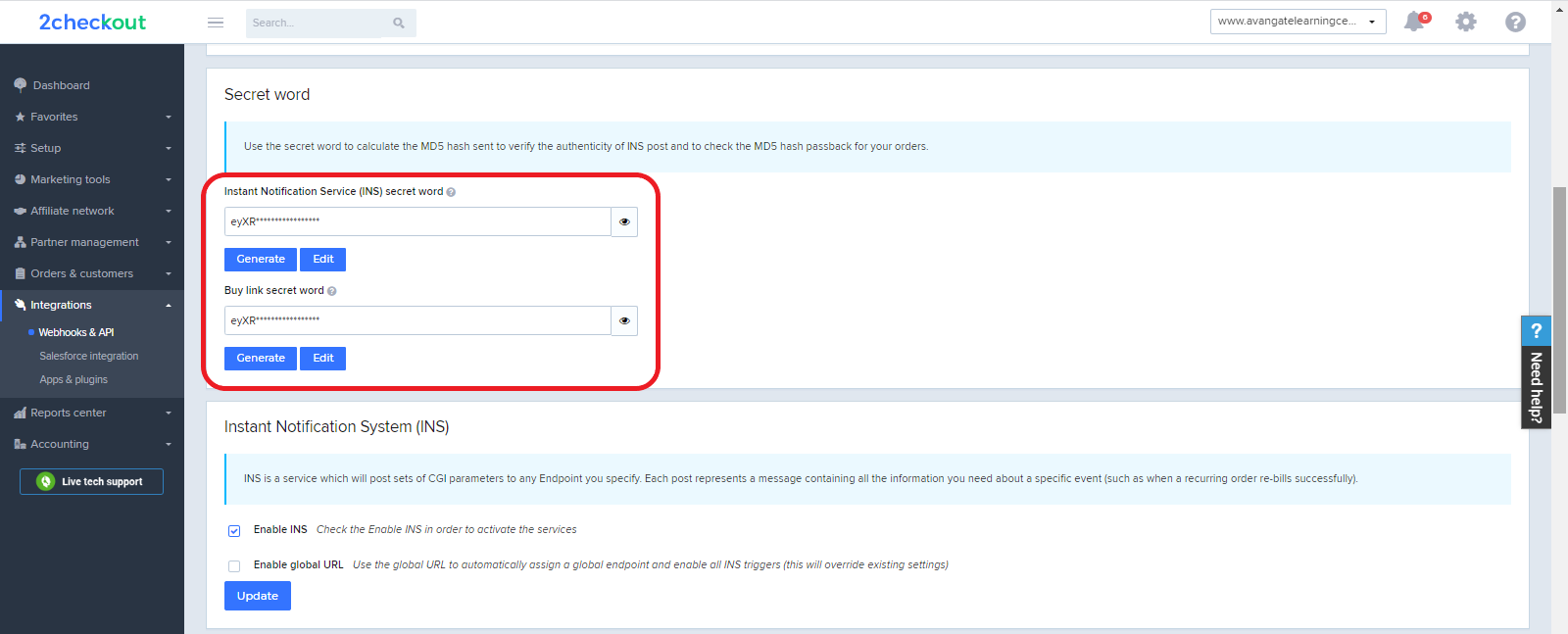
7. Enter your **2Checkout Secret Word**. (Must be the same value entered on your 2Checkout Control Panel.) To obtain the Secret Word, log in to your 2Checkout Merchant Control Panel account and navigate to *Integrations → Webhooks & API → Secret Word → INS Secret word*. Your **INS secret word** should be the same as the **buy-link secret word** (can be found under *Dashboard → Integrations → Webhooks & API*, scroll down to the Secret Word area, under the INS Secret Word). Edit your INS secret word and buy-link secret word to match each other, then copy and paste them into your WP-Invoice admin.\
8. For demo sales set **Demo Mode** to **Yes**. For live sales keep Demo Mode at **No**.
9. Under Direct Checkout select **Yes**.
10. Copy the URL provided under “2Checkout Approved URL/INS URL”.
11. Click **Save All Settings**.
#### 2Checkout Settings:
1. Sign in to your 2Checkout account.
2. Navigate to *Dashboard → Integrations → Webhooks & API*
3. Follow these steps to activate Redirect URL:
* In the **Redirect URL** section check **“Enable return after sale”**
* For Return method, select **Link in the Thank You Page** or **Header redirect**
* Set the **Approved URL** to the URL provided in your WP Invoice settings (Replace [http://yourdomain.com](http://yourdomain.com/) with the actual URL to your domain)
* Click **Update** to **save** your settings
4. In the **Webhooks and API** section, under the **Instant Notification Service (INS)** card, check the **Enable Global URL** box.
5. Enter the **Approved URL** (it must be the same value entered in your WP Invoice settings) as the Global URL (replace [http://www.yourdomain.com](http://www.yourdomain.com/) with your actual website URL)
6. Enable all **triggers**.
7. Click **Update** to **save** your changes.
## About WP-Invoice
WP-Invoice lets WordPress blog owners send itemized invoices to their clients. Ideal for web developers, SEO consultants, general contractors, or anyone with a WordPress blog and clients to bill. The plugin ties into WP’s user management database to keep track of your clients and their information.
For more information visit:
---
# Agent Instructions: Querying This Documentation
If you need additional information that is not directly available in this page, you can query the documentation dynamically by asking a question.
Perform an HTTP GET request on the current page URL with the `ask` query parameter:
```
GET https://docs.2checkout.com/connectors/connectors/integrate-wp-invoice.md?ask=
```
The question should be specific, self-contained, and written in natural language.
The response will contain a direct answer to the question and relevant excerpts and sources from the documentation.
Use this mechanism when the answer is not explicitly present in the current page, you need clarification or additional context, or you want to retrieve related documentation sections.