# Payment methods management in 2Checkout myAccount

## Overview

2Checkout myAccount enables customers to add, update, and manage their payment information on demand by connecting their recurring subscriptions to new payment methods.

## Availability <a href="#availability" id="availability"></a>

Payment methods management capabilities are available to all customers using 2Checkout myAccount.

However, the payment method management functionality can be used only for active, ongoing subscriptions, or those that are in the grace period, i.e. past their renewal deadline, but not expired. Adding or updating payment data **will not** function for **lifetime**, **canceled,** and **expired** subscriptions.

Contact 2Checkout to make sure your account's payment setup enables your customers to update or add payment data.

## myAccount supported payment methods <a href="#myaccount-supported-payment-methods" id="myaccount-supported-payment-methods"></a>

The following payment methods will be displayed to customers when attempting to add/update their payment information:

<table><thead><tr><th width="300.00006103515625">Supported payment method</th><th width="254">Add/Update to credit/debit card</th><th>Add/Update to PayPal</th></tr></thead><tbody><tr><td><p>Credit/debit cards</p><ul><li>VISA (and VISA Electron)</li><li>MasterCard</li><li>Maestro</li><li>American Express</li><li>Discover</li></ul></td><td>Yes</td><td>Yes</td></tr><tr><td>No payment method available (for subscriptions imported without payment info)</td><td>Yes</td><td>Yes</td></tr><tr><td>PayPal</td><td>Yes</td><td>Yes</td></tr><tr><td>DirectDebit</td><td>Yes</td><td>Yes</td></tr><tr><td>Bank wire transfer</td><td>Yes</td><td>Yes</td></tr></tbody></table>

{% hint style="warning" %}
Once replaced on a subscription by credit/debit card data and PayPal, payment methods such DirectDebit and bank wire transfer cannot be switched back.
{% endhint %}

However, customers can add/update additional credit/debit cards and PayPal accounts, as long as your account's payment setup supports them.

## Add a new credit / debit card flow

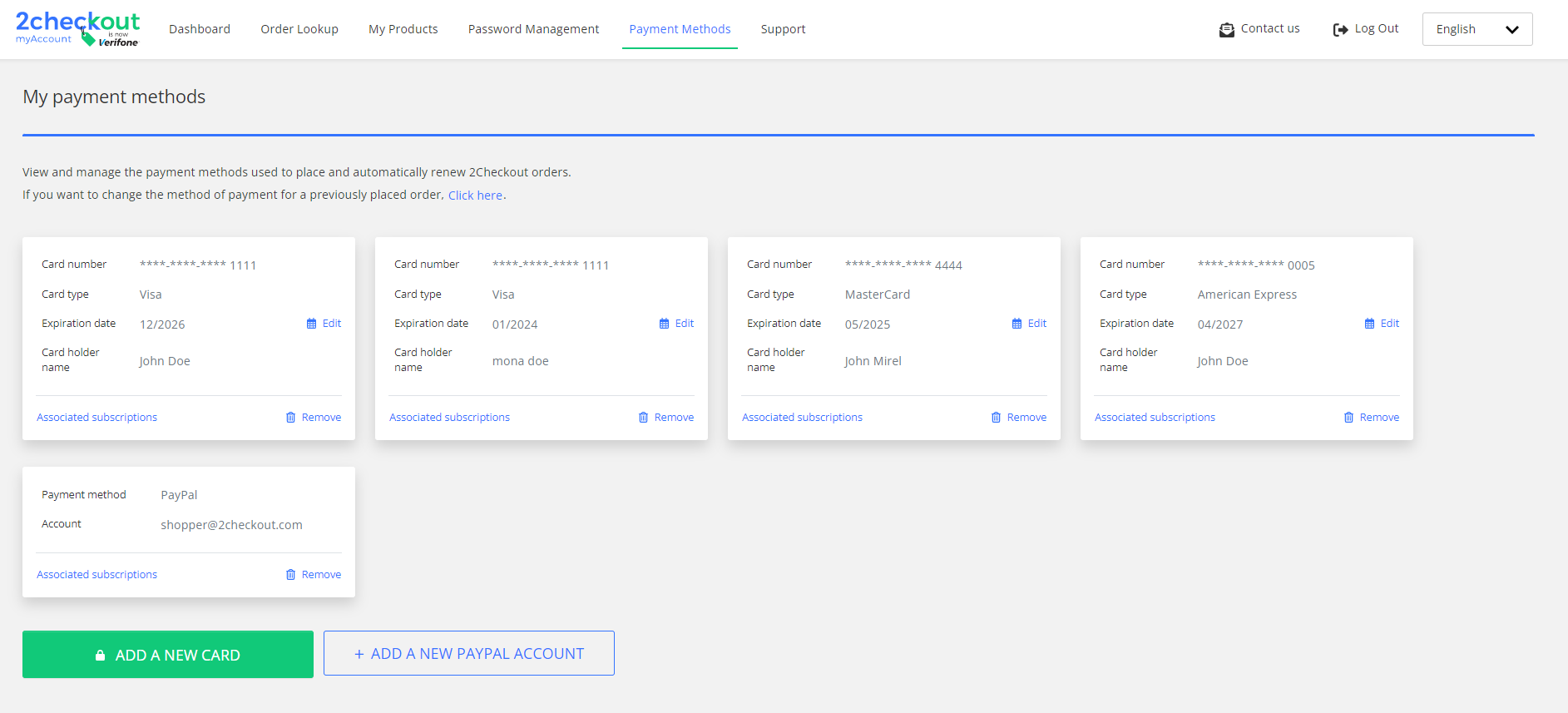
Shoppers can add, delete, update their payment methods details by clicking on the Payment Methods tab in the 2Checkout myAccount.

<div data-with-frame="true"><img src="/files/167f21556f8662bd0b73fdc2fdc78f4cb0a7311f" alt=""></div>

This is the first scenario designed to enable your customers to add and update their payment options:

1. Customers navigate to the [Payment Methods](https://secure.avangate.com/myaccount/payment_methods/?) area.
2. They click the **Add a new card** button.
3. In the *Add new card* area, customers can introduce new credit / debit card details and click **Save**.
4. The 2Checkout system performs credit/debit card validation checks, to ensure that the data supplied indeed fits the right format.
5. 2Checkout does not pre-authorize new payment information, since the credit/debit card is not assigned to a subscription and is not be used to charge the customer.
6. Once the data is saved the new credit/debit card will be featured in the customer's myAccount.

Credit / debit cards associated with an account can:

* Be assigned to specific, active subscriptions and used for future charges as a part of the recurring billing (subscription renewal) process.
* Be used to support payment tokenization for returning customers. Available credit/debit cards can be displayed in the shopping cart for existing customers, allowing them only to select the desired card rather than re-entering billing and payment information.

### Add credit / debit card data for a subscription flow

When they log into their myAccount, customers will be able to add credit/debit card data for:

* Imported subscriptions
* Subscriptions that were purchased using payment methods such as PayPal, DirectDebit, and bank wire transfer

Customers can see all their subscriptions by accessing the My Products section.

1. Go to *My Products* section.
2. Click on **Add Payment method** from the targeted subscription.<br>

   <div data-with-frame="true"><figure><img src="/files/YlQpl8dmJPxY04AUHxQH" alt=""><figcaption></figcaption></figure></div>
3. A pop-up window such as the one below will open.<br>

   <div data-with-frame="true"><figure><img src="/files/QQe26RfQ1ZVlvLulxDWc" alt=""><figcaption></figcaption></figure></div>
4. Choose a payment method you want to associate to the selected subscription and click the **Update payment method** button.

The 2Checkout system performs an authorization check for each card added. If the authorization is performed successfully, the card is associated with the subscription and used to charge customers as a part of the automatic renewal / recurring billing process. Details about the authorization process are available below.

If the **Enable automatic subscription renewal** option is checked, then the 2Checkout system automatically charges customers for the renewal of their subscriptions each recurring billing cycle.

The same card can be assigned to and used for multiple subscriptions.

### Pass 3DS verification flow when associating subscriptions to existing cards

Shoppers need to pass 3DS verification when associating subscriptions to existing cards in MyAccount.

1. Log in to the 2Checkout myAccount platform.
2. Navigate to the *Payment methods* tab.
3. Identify your card payment method in the list and press the **Associated subscriptions** button. A pop-up window containing all the associated and eligible for association subscriptions will show up in the page.<br>

   <div data-with-frame="true"><figure><img src="/files/I9a0u0WYR9O0qxUOiAJ6" alt=""><figcaption></figcaption></figure></div>
4. Check one of the eligible subscriptions in the list in order to associate it to the actual payment method.
   * Fill in the CVV in the editable field.
   * Press the **Save** button.<br>

     <div data-with-frame="true"><figure><img src="/files/mxKnWEftfhCdpRTc9O8h" alt=""><figcaption></figcaption></figure></div>
5. Check one of the eligible subscriptions in the list in order to associate it to the actual payment method.<br>

   <div data-with-frame="true"><figure><img src="/files/Yu1GhMYilwkGI2FVSY8V" alt="" width="474"><figcaption></figcaption></figure></div>

As a final verification, you can reopen the pop-up with the subscriptions associated to the payment method for which you made the association and check that the subscription is now in the *Associated subscriptions* list. The subscription is now successfully associated to the payment method and it can be found in the *Associated subscriptions* list.

### Delete a card

1. Log in to the 2Checkout myAccount platform.
2. Navigate to *Payment methods*.
3. Select the card you want to delete and click on **Remove**.<br>

   <div data-with-frame="true"><figure><img src="/files/YYAE6rcgTcCeVkx84nnz" alt=""><figcaption></figcaption></figure></div>
4. Before **removing a card**, make sure that this is not associated with any subscriptions; if it is, you need to deactivate all the subscriptions associated with the card that you wish to delete.<br>

   <div data-with-frame="true"><figure><img src="/files/PF4e6WF0fguaEdH2gqnI" alt=""><figcaption></figcaption></figure></div>
5. Click on **Confirm removal** to delete the card.<br>

   <div data-with-frame="true"><figure><img src="/files/GJct73ZKwvnKBQg8HVSW" alt=""><figcaption></figcaption></figure></div>

### Update a card

2Checkout lists credit/debit cards used to pay for a subscription at the top of the *New Credit Card information* pop-p window. The credit/debit card currently used to charge customers for the automatic renewal / recurring billing process is highlighted.

Customers can select one of the existing cards to be charged as a part of the automatic renewal / recurring billing process, replacing the one previously in use. The last added card will be displayed at the top of the list.

At the same time, they have the option of adding new payment information. The 2Checkout system performs an authorization check for each card added. If the authorization is performed successfully, the card will be associated with the subscription and will be used to charge customers as a part of the automatic renewal / recurring billing process. Details about the authorization process are available below.

If the **Enable automatic subscription renewal** option is unchecked, then the automatic renewal system **will be disabled** for the subscription. As a result, the 2Checkout system **will no longer automatically charge** customers for the renewal of their subscriptions each recurring billing cycle. Customers can still renew their subscriptions manually.

### Update credit/debit card info

1. Customers navigate to the [Payment Methods](https://secure.avangate.com/myaccount/payment_methods/?) area.
2. They need to click the **Edit** button and they'll be able to enter new expiration information and click **Save**.
3. They can click **Remove** and delete the card-on-file data from the 2Checkout platform.

### Card pre-authorization

* The customer assigns a card to an active or past due subscription.
* 2Checkout issues a pre-authorization charge using the minimum value set for the process, in accordance with the payment method used by the customer and the currency selected for the order. The pre-authorization charge is handled by a payment gateway that attempts to validate the card with its issuing bank.

For credit /debit cards the temporary charge (pre-authorization) put on hold is usually $1/1EUR or the rough equivalent of this amount converted in the currency used for the ordering process.

The credit / debit card is:

* Instantaneously authorized by the issuing bank (2Checkout receives validation from payment gateway) and will be associated with the subscription. The credit / debit card is validated and the unique order reference generated by 2Checkout is stored so the system can charge customers in the future for trial conversions or the automatic renewal of subscriptions.
* Not authorized by the issuing bank (payment gateway informs 2Checkout that validation has failed). An error message will be presented to customers, asking them to try again.

All pre-authorized charges are reversed automatically. The pre-authorization cancelation process takes a maximum of one (1) hour. Depending on the customer's bank, pre-authorization charges may or may not appear on credit/debit card statements or online account activity logs.

## Add / delete PayPal flow

Regardless of the myAccount layout, shoppers can **add** and/or **delete** PayPal to/from multiple recurring subscriptions. They can also change the payment method associated with their subscriptions from any payment method to PayPal, from PayPal to card, or from one PayPal account to a different one at any point.

### Add a PayPal account

To add a PayPal account, follow these steps:

1. Log in to your 2Checkout myAccount.
2. Navigate to *Payment Methods*.
3. Click on **Add a new PayPal account**.<br>

   <div data-with-frame="true"><figure><img src="/files/aWLJUWcbsBpEyzQTCni9" alt=""><figcaption></figcaption></figure></div>
4. In the *Update payment method* window, fill in your PayPal account, and click the **Save** button.<br>

   <div data-with-frame="true"><figure><img src="/files/3ZZTRViI8iSS273QjY70" alt=""><figcaption></figcaption></figure></div>
5. You'll be redirected to the PayPal page to input your email address and password for login.<br>

   <div data-with-frame="true"><figure><img src="/files/urckIKBR49pRS7fmsPcJ" alt="" width="468"><figcaption></figcaption></figure></div>

   <div data-with-frame="true"><figure><img src="/files/PuS6KFgFkcTIabfM0BAA" alt="" width="401"><figcaption></figcaption></figure></div>
6. You can see the newly saved PayPal account displayed in the *Payment methods* section.

### Delete a PayPal account

1. Log in to your 2Checkout myAccount.
2. Click on the **Payment methods** tab.
3. Click on **Remove** next to the PayPal payment method.<br>

   <div data-with-frame="true"><figure><img src="/files/OSMSdoeNAXd2p02BmCFD" alt=""><figcaption></figcaption></figure></div>
4. Before **removing a PayPal account**, make sure that this is not associated with subscriptions that have automatic renewal enabled; if it is, disable automatic renewal for each of the subscriptions associated with the PayPal account that you wish to delete.<br>

   <div data-with-frame="true"><figure><img src="/files/RhgFopqPw41au7reyLVz" alt=""><figcaption></figcaption></figure></div>
5. Before **removing a PayPal account**, make sure that this is not associated with subscriptions that have automatic renewal enabled; if it is, disable automatic renewal for each of the subscriptions associated with the PayPal account that you wish to delete.

## Associate multiple subscriptions to a card/wire/PayPal account

You can now associate multiple subscriptions to a card/wire/PayPal account in one step instead of having to link them one by one.

Follow these steps to associate multiple subscriptions to a card/wire/PayPal account:

1. Log in to your 2Checkout myAccount.
2. Navigate to *Payment Methods*.
3. Select the payment method you wish to associate with multiple subscriptions and click on the **Associated subscription** link.<br>

   <div data-with-frame="true"><figure><img src="/files/boju5vBi2k4EphWHdZBh" alt=""><figcaption></figcaption></figure></div>
4. In the *Associate subscriptions* window, you can see the subscriptions already associated with the payment method and you can also select other subscriptions that you would like to add to the same payment method.
5. After selecting the subscriptions, click on **Save**.<br>

   <div data-with-frame="true"><figure><img src="/files/dUrwDHaFHtaAxObknv5z" alt=""><figcaption></figcaption></figure></div>

## FAQs

<details>

<summary>What happens when credit cards expire? Will such items still be listed?</summary>

Expired credit/debit cards can no longer be used to charge customers. However, expired cards that were associated with a subscription will continue to be displayed.

For more FAQ topics, visit the [Support](https://secure.2co.com/support/section.php?category=6\&merchant=\&template=\&lang=en#actualContent) section from myAccount.

</details>


---

# Agent Instructions: Querying This Documentation

If you need additional information that is not directly available in this page, you can query the documentation dynamically by asking a question.

Perform an HTTP GET request on the current page URL with the `ask` query parameter:

```
GET https://docs.2checkout.com/customer-myaccount/2checkout-customer-myaccount/payment-methods-management-in-2checkout-myaccount.md?ask=<question>
```

The question should be specific, self-contained, and written in natural language.
The response will contain a direct answer to the question and relevant excerpts and sources from the documentation.

Use this mechanism when the answer is not explicitly present in the current page, you need clarification or additional context, or you want to retrieve related documentation sections.
