> For the complete documentation index, see [llms.txt](https://docs.2checkout.com/llms.txt). Markdown versions of documentation pages are available by appending `.md` to page URLs; this page is available as [Markdown](https://docs.2checkout.com/get-started/getting-started/activate-your-account.md).
# Activate your account
## Overview
After you create your account with 2Checkout, you need to request the activation of your live account by completing a form and providing information that will help us verify the business and identity of the individuals involved in your business.
{% hint style="warning" %}
Your activation request will be analyzed manually by 2Checkout’s Underwriting team and it is a mandatory step before you can start selling. Do make sure you check your email for any requests you may get from 2Checkout that are needed to finish the activation process.
{% endhint %}
## Activate your 2Checkout account
{% stepper %}
{% step %}
### Start activation
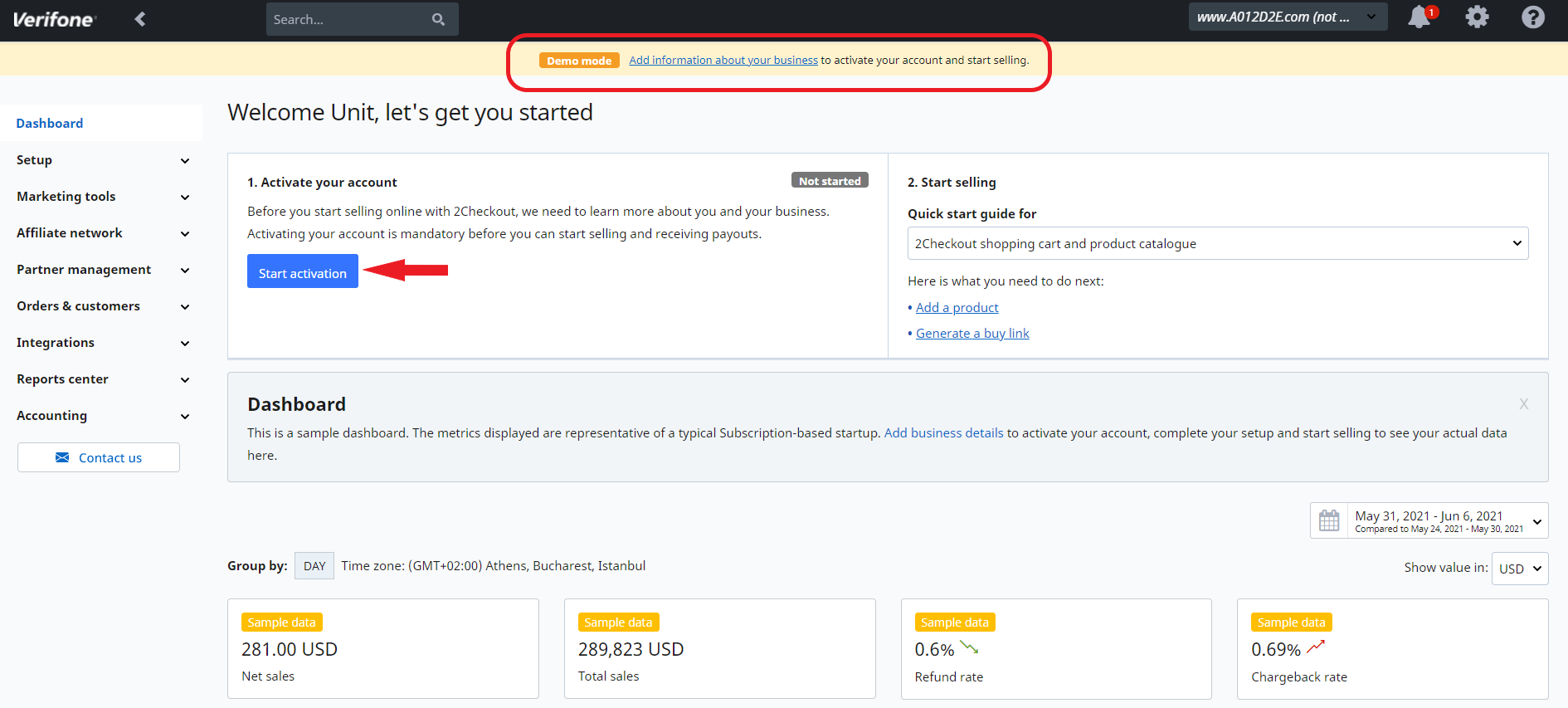
Activate your 2Checkout account by clicking on the **Start activation** button.
Upon clicking **Start activation** you'll be prompted with an application form that you need to fill out to provide information about your business.
All application fields are mandatory. It will take about 5–10 minutes to complete the form. If you don’t have all the information at hand, you can **save the application** and continue later.
Make sure you have the following documents ready to upload during the application process:
* A **company registration** document (chamber of commerce extract or articles of incorporation)
* A **valid passport** or official **identity card** (not a driver’s license) of the person signing the contract and of shareholders who directly or indirectly have 10% or more of the shares or voting rights. (Note that the [MRZ code](https://en.wikipedia.org/wiki/Machine-readable_passport) needs to be clearly visible.)
{% endstep %}
{% step %}
### Demo mode indicator
If you haven't started the account activation, you will see an orange button that displays the text **“Demo mode”** at the top of your Merchant Control Panel and asks you to **"Add information about your business to activate your account and start selling"**.
{% endstep %}
{% step %}
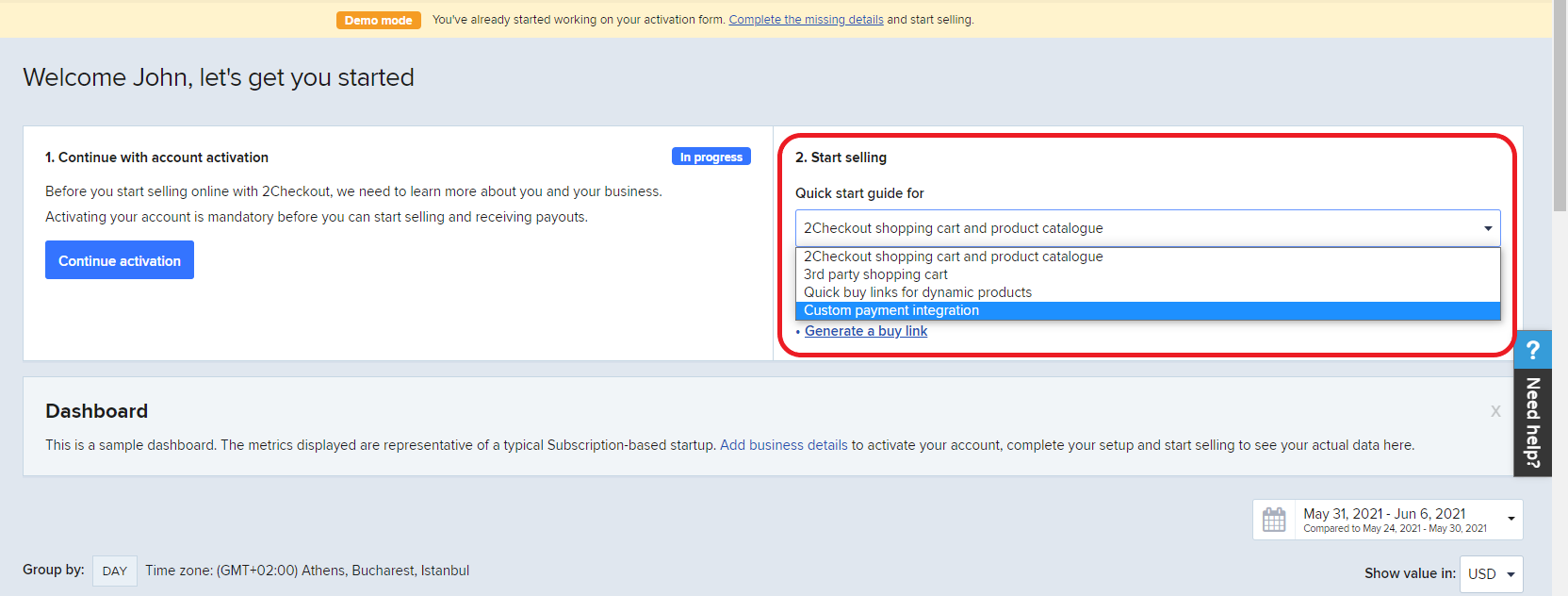
### PSP business model note
If you are on the PSP business model (2Sell or 2Subscribe accounts), the Start selling steps in the drop-down will look like this:
{% endstep %}
{% endstepper %}
## Fill in the application form
After hitting the **Start activation** button, you'll need to fill out the activation form in order to be able to sell with us.
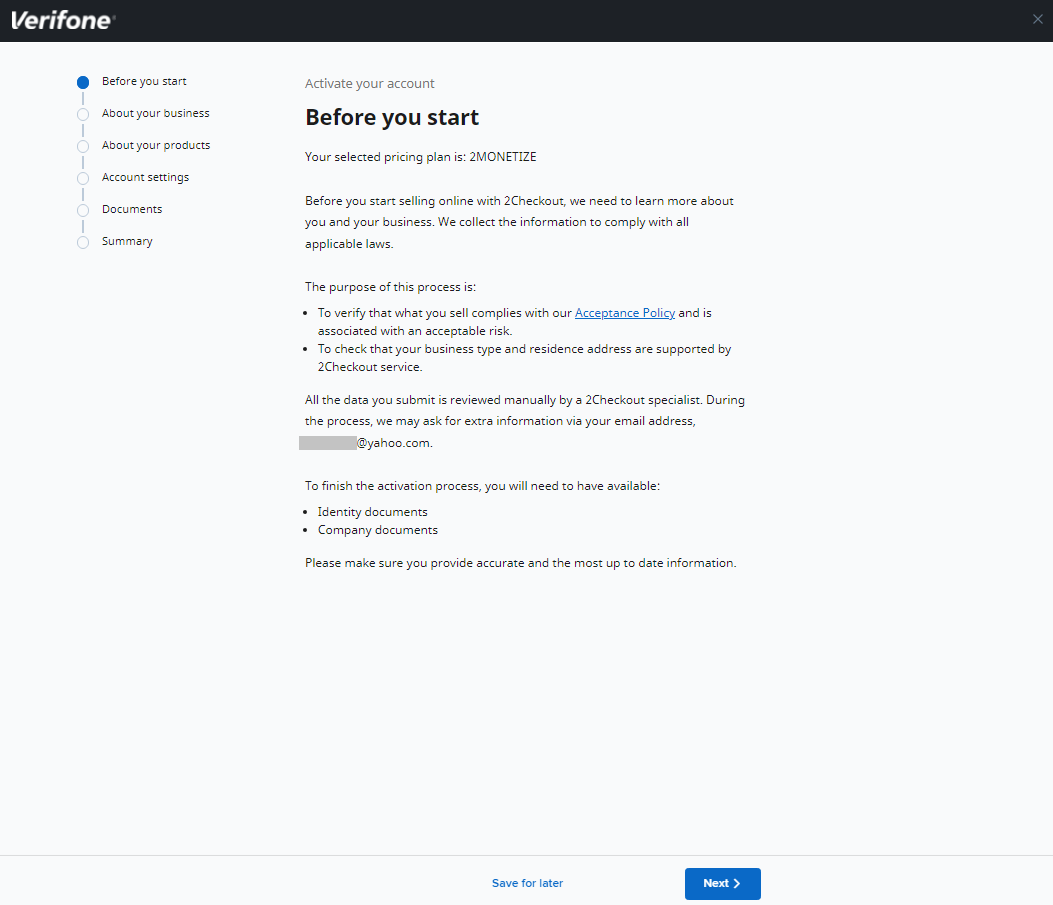
**Before you start** filling out the form, you'll be prompted with a page that:
* informs you about your pricing plan
* states the purpose of the form
* explains the activation process
Once you click **Next**, you can see all the required info and also how to fill out the form.
### About your business
Tell us the basics of your business.
1. Let us know what **is the Trade name** of your business. This can be your business registered name or your full name as seen in your National ID if your business is not registered yet. The name of your business will be displayed to your customers during checkout.
2. Select the **Business type** for your company from the drop-down list:
* **Individual or Sole proprietorship** – your business is unincorporated and you are the only person responsible and liable for all your company’s profit and debts
* **Partnership** – your company’s profit and debts are owned and/or shared by two or more individuals
* **Private corporation** – your company’s shares are not publicly traded and are held by a small number of stockholders (shareholders)
* **Public corporation** – your company’s shares are publicly traded and are held by a large number of stockholders (shareholders)
* **Limited Liability Corporation (LLC)**
* **Non-profit** – your company serves the public interest and runs charitable activities or is raising funds from the public
* Other
3. If you select the business type as **Individual**, you need to add your **personal details** (date of birth, ID number as printed on your national identification documents, such as ID-card, passport or residents permit, and your phone number), and your **fiscal address** **details** (country, city, address, ZIP/postal code). In the unlikely event that we need to contact you, a phone number is our preferred alternative to email. Verifone will not spam you.
4. If you select any of the other business types, you need to provide the **company registration date** (date when your business was established) and the **Registered business address** (country, city, address, ZIP/postal code). The company address cannot be from a Virtual Box or a P.O. Box.
5. Click **Next** to continue with the **Financial details** of your business. Verifone needs this information to assess your company financially from a risk standpoint. You need to provide the following details:
* **Company Registration ID**
* **Tax registration number** – Same with company registration ID in some cases. Depending on your country, the tax registration can have different names (Tax ID in USA, VAT in EU, GST in India, etc.). The Tax or Value Added Tax number (VAT) is issued by the Tax Office at the moment of registration of the business. You can provide your Tax or Employer Identification Number, or, in case you use your Social Security Number for business tax purposes, you can provide that instead.
* **Annual online transacted volumes** (in US dollars) – for start-ups with no processing history, we recommend entering $10,000 - $30,000 or less, unless you have some special circumstances around your launch. Otherwise, use your current processing statements as a guide.
* **Average order value** (in US dollars)
* **Chargeback rate** for the past 12 months and an estimation for the next 12 months
6. Click **Next** to provide details about the **Stakeholders.** To be compliant with financial regulations and anti-money-laundering laws, 2Checkout is required to know the identity of the individuals who substantially control or own your company. \
\
Click **Add stakeholder** to provide details either about yourself and/or about any beneficiary having 10% or more voting rights, shares, or other direct or indirect control in your company.
* First name
* Last name
* Stakeholder type – Owner/Legal representative or both
* Role – The position/role the stakeholder has within your company.
* Ownership share – Share percentage that the stakeholder has in the company.
* Email
* Phone
* Country
* City
* Address
* ZIP/Postal code
* Date of birth
* National identification number – This is your [national identification number](https://en.wikipedia.org/wiki/National_identification_number) and depending on your country it can have different names. This will be used for identity verification and soft credit check that will not affect your credit score.
### About your products
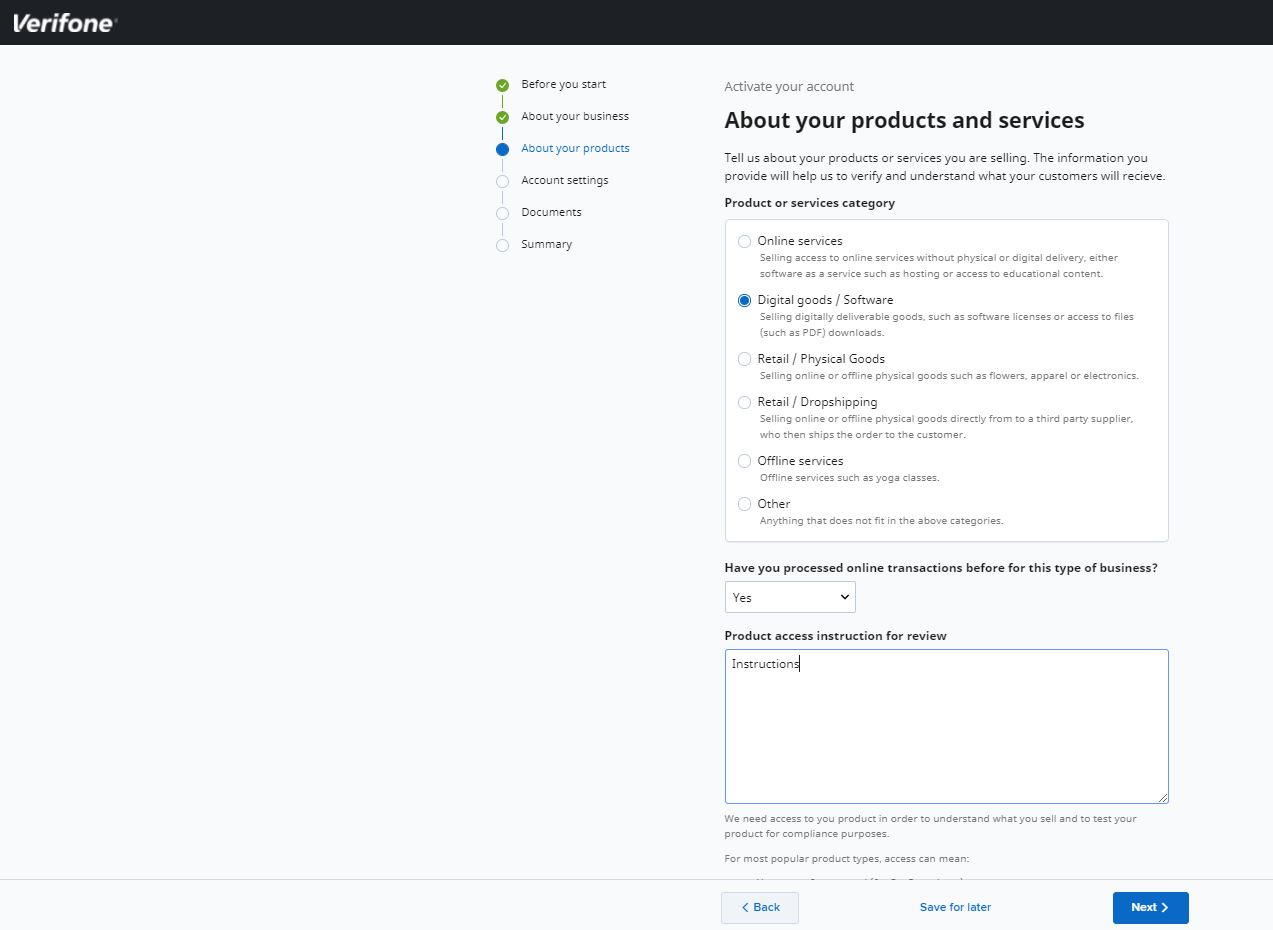
Tell us more about the products and services you provide. The information helps verify and understand what your customers will receive.
You need to add information about:
* **Product or services category**:
* Online services – Selling access to online services without physical or digital delivery, e.g., hosting or access to educational content
* Digital goods/software – Selling digitally deliverable goods, such as software licenses or downloadable files
* Offline services – Offline services such as yoga classes
* **Have you processed online transactions before for this type of business?**
* **Product access instruction for review**:
* Verifone needs access to your product to understand what you sell and to test for compliance. For common product types, access can mean:
* Username & password (for SaaS products)
* Download URL + username & password and license key if applicable (for downloadable products)
{% hint style="info" %}
Your business must operate within the permitted use of Verifone services outlined in the [Acceptable Use Policy](http://www.2checkout.com/legal/acceptance.php).
{% endhint %}
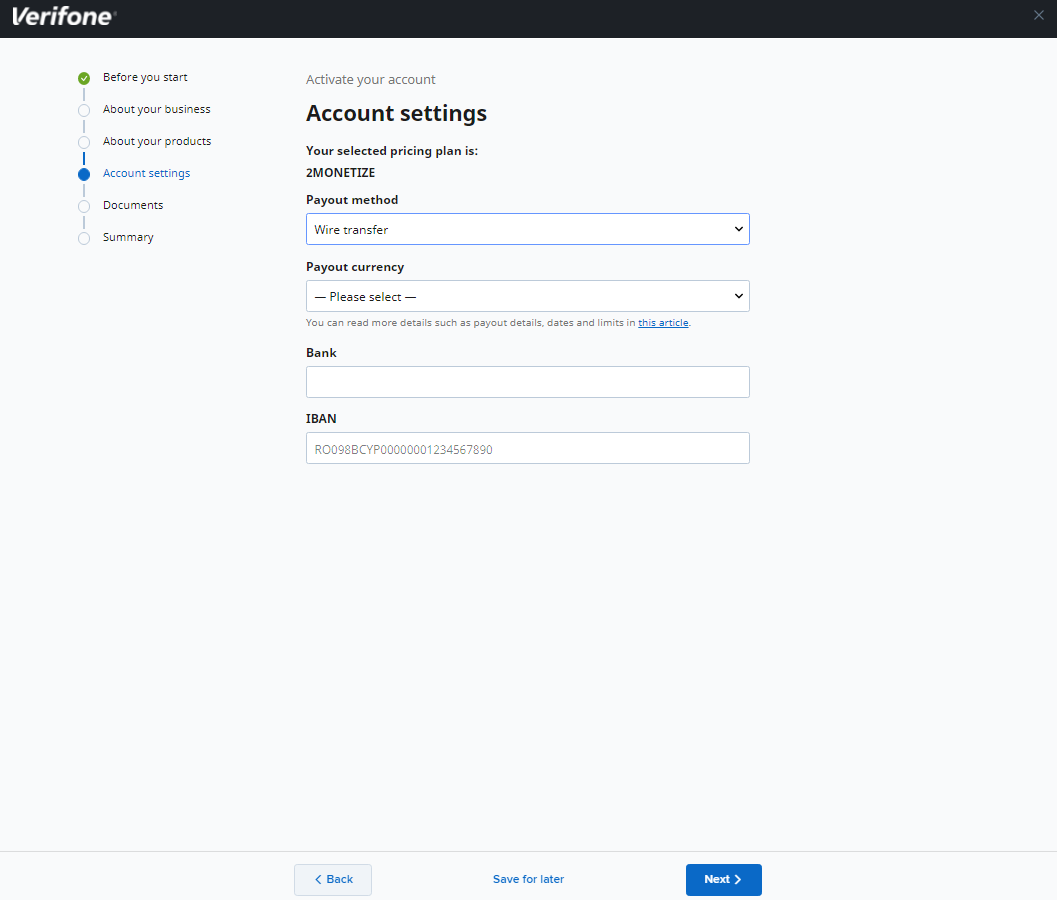
### Account settings
Select the payout method you would like Verifone to use for issuing your transfers. Possible values:
* **Wire Transfer** – requires bank information such as bank name, city, currency, and bank account number
* **PayPal** – requires a payout currency and PayPal address
* **Payoneer** – requires a payout currency and a [Payoneer ID](https://payouts.payoneer.com/partners/lp.aspx?token=6a85cf5ecb4148829ab10ee5daacd62fADDC62AAF5). You can [apply for a 2Checkout MasterCard powered by Payoneer](https://secure.2checkout.com/cpanel/avangate_mastercard.php) from your Merchant Control Panel.
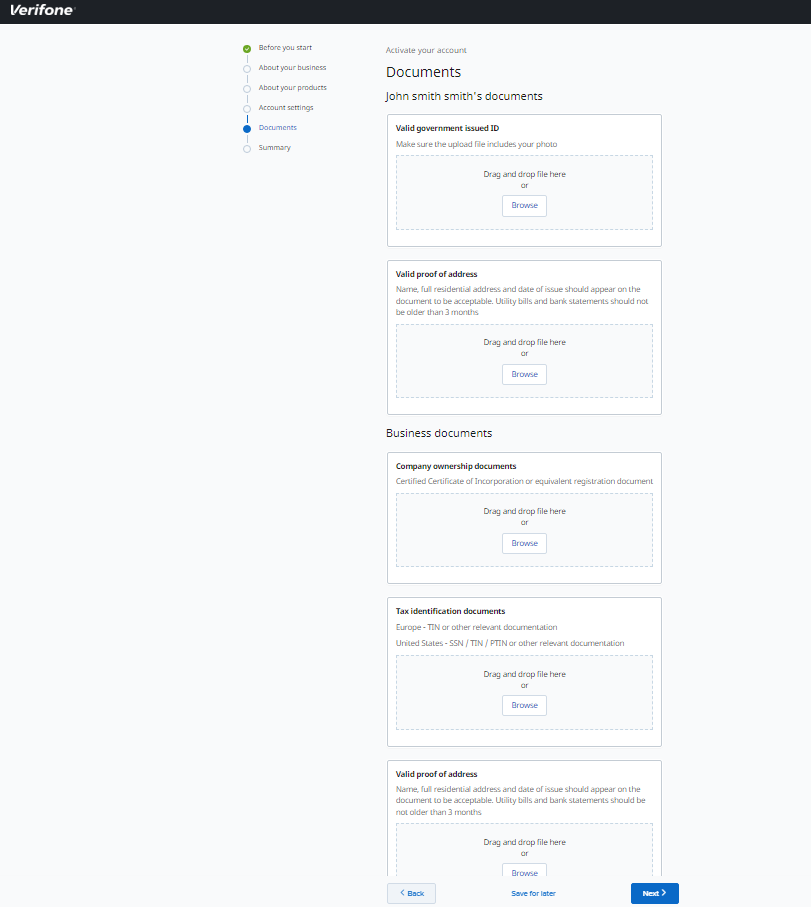
### Documents
After saving your account settings you can upload the necessary documents to prove your identity.
{% hint style="info" %}
Accepted formats: .docx, .jpg, .png, .pdf, and .gif (<10MB).
{% endhint %}
* **Valid government-issued ID** – ID card or passport. Ensure the uploaded file includes your photo.
* **Valid proof of address** – Name, full residential address, and date of issue should appear. Utility bills and bank statements must be no older than 3 months.
* **Business documents**:
* **Company ownership documents** – Certified Certificate of Incorporation or equivalent registration document
* **Tax identification documents** – For Europe, TIN or relevant documentation; for the United States, SSN/TIN/PTIN or relevant documentation.
* **Valid proof of address** – electricity or telephone bill that states your name, full residential address, and date of issue (not older than 3 months).
You can also upload any other valid and relevant documents that help prove your identity and company ownership.
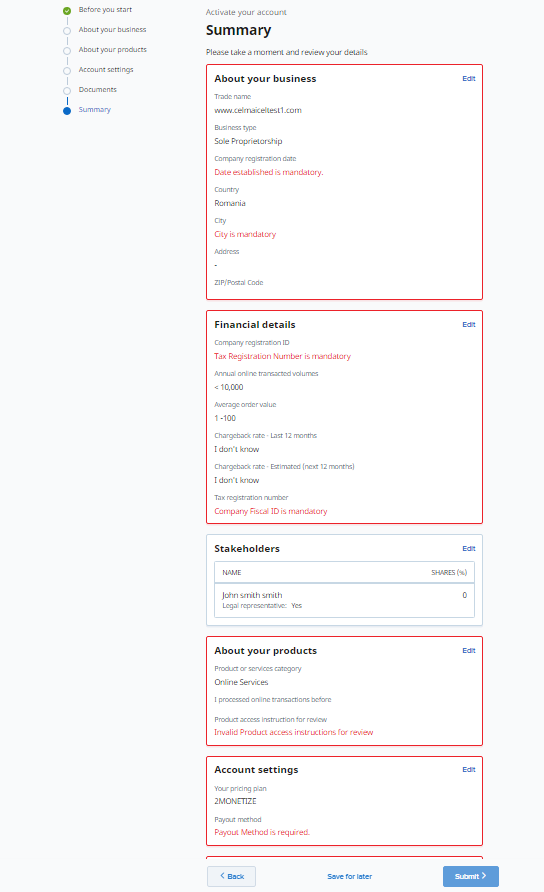
### Summary
Once you upload the required documents and before hitting **Submit**, review your application form and update/edit missing or incorrect information highlighted in red.
## Application review process
After filling in your information, submit the application for review. If there are any empty fields or missing information, you will not be able to click the Submit button.
Once submitted, Verifone's Underwriting team will review your application and will contact you if additional details are needed or to notify you about the resolution.
If additional information is required:
* You will receive an email notification
* The first activation step on your [Dashboard](https://secure.2checkout.com/cpanel/) will display the message **“Action required"**
* You can update your request and provide the additional information requested by Verifone's underwriting team by clicking **Add required information**
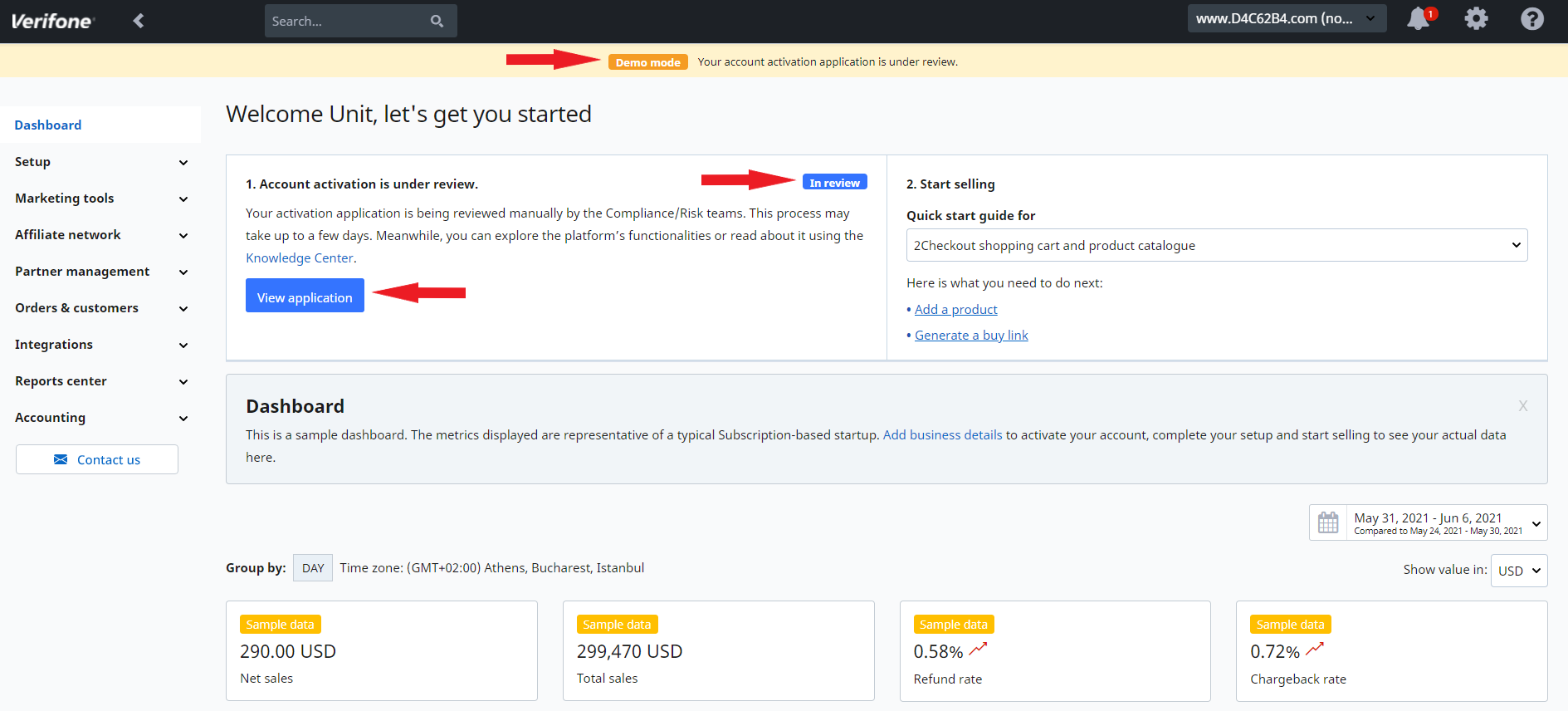
Upon submitting the required information, your Dashboard will display messages that your application is **"In review"**, and you can view it by clicking **View application**.
## Sign the contract and go live!
By submitting the application for review you acknowledge and accept the [Terms and Conditions](https://www.2checkout.com/legal/terms/) and Services Agreement that will become your binding contract as soon as the application is approved by Verifone's underwriting team.
Once your application is approved, your account is live and can be used for real transactions. Verifone strongly recommends testing your integration one last time before publishing buying links and starting to process live payments.
Your [Dashboard](https://secure.2checkout.com/cpanel/) will continue to display sample data until you process your first real transaction.
{% hint style="info" icon="lightbulb" %}
#### Want to sell worldwide? Learn how Verifone can help with over 45 payment methods and 100 display and billing currencies.
Read more
{% endhint %}
---
# Agent Instructions
This documentation is published with GitBook. GitBook is the documentation platform designed so that both humans and AI agents can read, navigate, and reason over technical content effectively. Learn more at gitbook.com.
## Querying This Documentation
If you need additional information that is not directly available in this page, you can query the documentation dynamically by asking a question.
Perform an HTTP GET request on the current page URL with the `ask` query parameter, and the optional `goal` query parameter:
```
GET https://docs.2checkout.com/get-started/getting-started/activate-your-account.md?ask=&goal=
```
`ask` is the immediate question: it should be specific, self-contained, and written in natural language.
`goal` is optional and describes the broader end goal you are ultimately trying to accomplish on behalf of the user. GitBook uses it to tailor the answer towards what is most useful for that goal.
The response will contain a direct answer to the question and relevant excerpts and sources from the documentation.
Use this mechanism when the answer is not explicitly present in the current page, you need clarification or additional context, or you want to retrieve related documentation sections.