> For the complete documentation index, see [llms.txt](https://docs.2checkout.com/llms.txt). Markdown versions of documentation pages are available by appending `.md` to page URLs; this page is available as [Markdown](https://docs.2checkout.com/orders/orders/place-orders-on-behalf-of-customers.md).
# Place orders on behalf of customers
## Overview
The 2Checkout platform enables you to place new orders on behalf of your existing customers.
* Streamline new purchases for your existing customer base through a frictionless ordering process.
* Leverage payment data that customers already shared with you to simplify the new acquisition process.
You can use either:
* Existing payment details to charge customers
* New payment details
## Availability
Don't hesitate to get in touch with 2CheckoutPlease contact 2Checkout directly to start using this functionality.
## Requirements
PCI Data Security Standards (PCI DSS) compliance is strongly recommended for this feature. Contact [2Checkout](https://secure.avangate.com/cpanel/contact.php) directly to enable the feature.
## User privileges
To provide users of your account with access to this functionality, head over to [Account settings](https://secure.avangate.com/cpanel/index_account_settings.php), [Manage user access](https://secure.avangate.com/cpanel/tools_users.php), click to edit a role, and in the **Orders & Reports** area, check the **Place orders on behalf of customer** option.
## Supported payment methods
When using existing payment details, you will only be able to place new orders on behalf of your customers, provided that they shared their **credit card or debit card data** when making the initial or a previous purchase through the 2Checkout system.
## Workflow
Navigate to [**Customers**](https://secure.avangate.com/cpanel/customers_management.php), under **Orders & customers**, run a search to identify the customer on whose behalf you wish to place a new order, and edit the customer entity. The **Place new order** button is located in the area immediately below the **Customer insight** and **Customer billing details** sections.
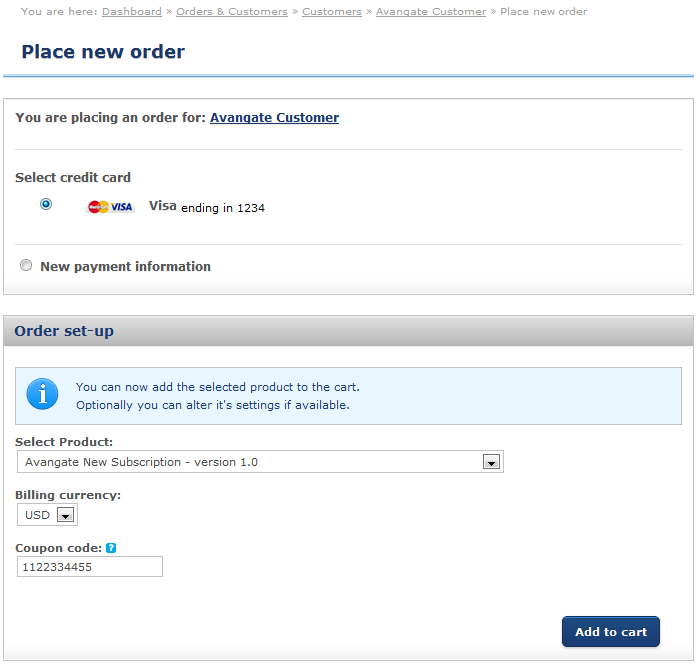
### Use existing payment details
{% stepper %}
{% step %}
#### Select an existing card and product
Select an existing credit card that will be used to charge the customer.
Select the product you're purchasing on behalf of the customer.
The dropdown menu features both the product name and the product code, and enables you to search using either.
{% endstep %}
{% step %}
#### Choose billing and apply coupon
Choose the **billing currency**.
**Optional**: Enter a valid coupon code to provide a discount.
{% hint style="info" %}
The code must be associated with an already defined promotion.
{% endhint %}
{% endstep %}
{% step %}
#### Add to cart and review
Click **Add to cart**. On the product page, you can change the pricing options, quantity, currency, etc.
Hit the **Buy now** button.
{% endstep %}
{% step %}
#### Confirm and place order
You will be directed to a shopping cart that features the Billing and Delivery address, as well as the prefilled Payment information. Since an existing credit card is being charged, these details are not editable. The discount is also displayed in the cart.
Click on **Place order** to finish the purchase.
A new order will be placed, available via the *Orders* search area.
{% endstep %}
{% endstepper %}
### Use new payment details
{% stepper %}
{% step %}
#### Select new payment and product
Select the **New payment information** option.
Select the product you're purchasing on behalf of the customer.
{% endstep %}
{% step %}
#### Choose billing and apply coupon
Choose the **billing currency**.
**Optional**: Enter a valid coupon code to provide a discount.
{% hint style="info" %}
The code must be associated with an already defined promotion.
{% endhint %}
{% endstep %}
{% step %}
#### Add to cart and review
Click **Add to cart**. On the product page, you can change the pricing options, quantity, currency, etc.
Hit the **Buy now** button.
{% endstep %}
{% step %}
#### Enter payment details and place order
You will be directed to a shopping cart that features the *Billing information* prefilled. You can edit these details if you require. The discount is also displayed in the cart.
Select a **Payment Option** from the drop-down menu. Enter the new payment details required to charge the customer and hit **Place order**.
A new order will be placed, available via the *Orders* search area.
{% hint style="info" %}
In this scenario, you will be able to use any payment method supported by the 2Checkout platform, as long as the customers share the necessary data with you.
{% endhint %}
{% endstep %}
{% endstepper %}
## Shopping cart
The shopping cart you use to place orders features the default design, and not the look and feel of any custom templates used by your customers during the process of placing orders.
## 2Checkout customer references
2Checkout generates customer references by default for all sold subscriptions, and uses them when ordering a new product on behalf of existing customers. The system-issued ID used is visible as the AV\_CUSTOMERID parameter in the Buy Link. Use of the **2Checkout customer reference** aggregates subscriptions created as a result of the new acquisition process under the account of the customer on whose behalf you're placing the new order.
---
# Agent Instructions
This documentation is published with GitBook. GitBook is the documentation platform designed so that both humans and AI agents can read, navigate, and reason over technical content effectively. Learn more at gitbook.com.
## Querying This Documentation
If you need additional information that is not directly available in this page, you can query the documentation dynamically by asking a question.
Perform an HTTP GET request on the current page URL with the `ask` query parameter, and the optional `goal` query parameter:
```
GET https://docs.2checkout.com/orders/orders/place-orders-on-behalf-of-customers.md?ask=&goal=
```
`ask` is the immediate question: it should be specific, self-contained, and written in natural language.
`goal` is optional and describes the broader end goal you are ultimately trying to accomplish on behalf of the user. GitBook uses it to tailor the answer towards what is most useful for that goal.
The response will contain a direct answer to the question and relevant excerpts and sources from the documentation.
Use this mechanism when the answer is not explicitly present in the current page, you need clarification or additional context, or you want to retrieve related documentation sections.