> For the complete documentation index, see [llms.txt](https://docs.2checkout.com/llms.txt). Markdown versions of documentation pages are available by appending `.md` to page URLs; this page is available as [Markdown](https://docs.2checkout.com/payment-link/create-a-payment-link/generate-a-buy-link-using-the-convertplus-and-inline-checkout.md).
# Generate a Buy-Link using the ConvertPlus and InLine Checkout
## Overview
One way to integrate your platform with the 2Checkout systems is to generate a buy-link that you can then apply to the **Buy** button on your web store. Read on to find out how to create a buy-link using the ConvertPlus and InLine carts, both for a single product, as well as for a multiple selection of products.
## Availability
All merchants (on any type of account) can generate a link from their Merchant Control Panel.
## Generate a buy-link for a single product using the ConvertPlus cart
Follow the steps below to generate a buy-link for one or more products using the ConvertPlus cart:
{% stepper %}
{% step %}
### Sign in to Merchant Control Panel
Log in to your 2Checkout account in the [Merchant Control Panel](https://secure.2checkout.com/cpanel).
{% endstep %}
{% step %}
### Open Generate links
Navigate to **Setup** and click on [Generate links](https://secure.2checkout.com/cpanel/integration.php).
* Learn how to manage buy-link behavior by using [query parameters](/payment-link/checkout-links-and-options/buy-link-parameters.md).
{% endstep %}
{% step %}
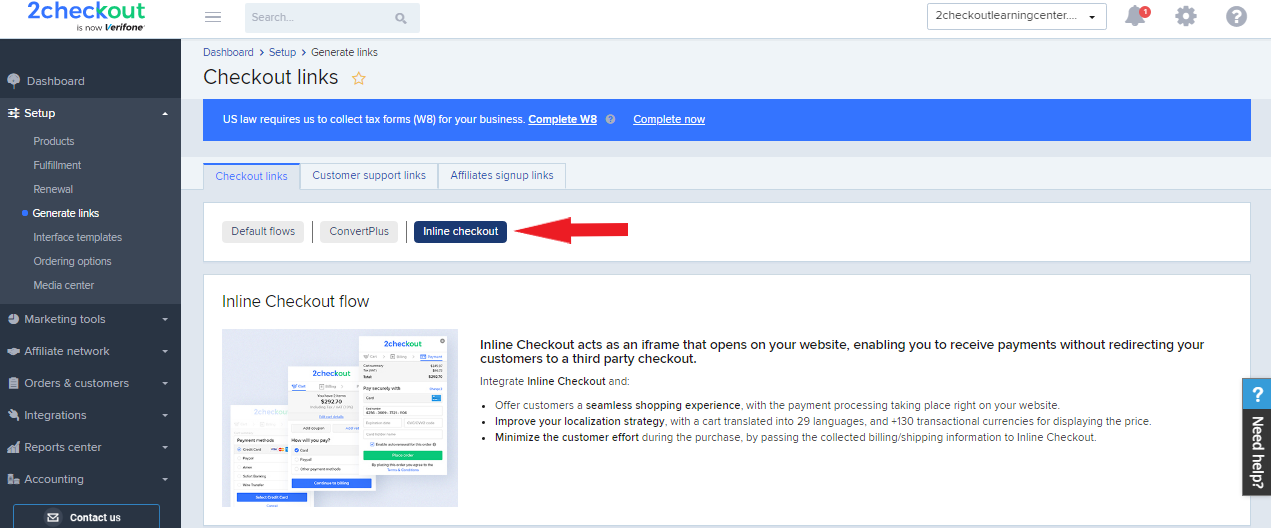
### Choose ConvertPlus
In the **Checkout links** tab, click on the **ConvertPlus** button.
{% endstep %}
{% step %}
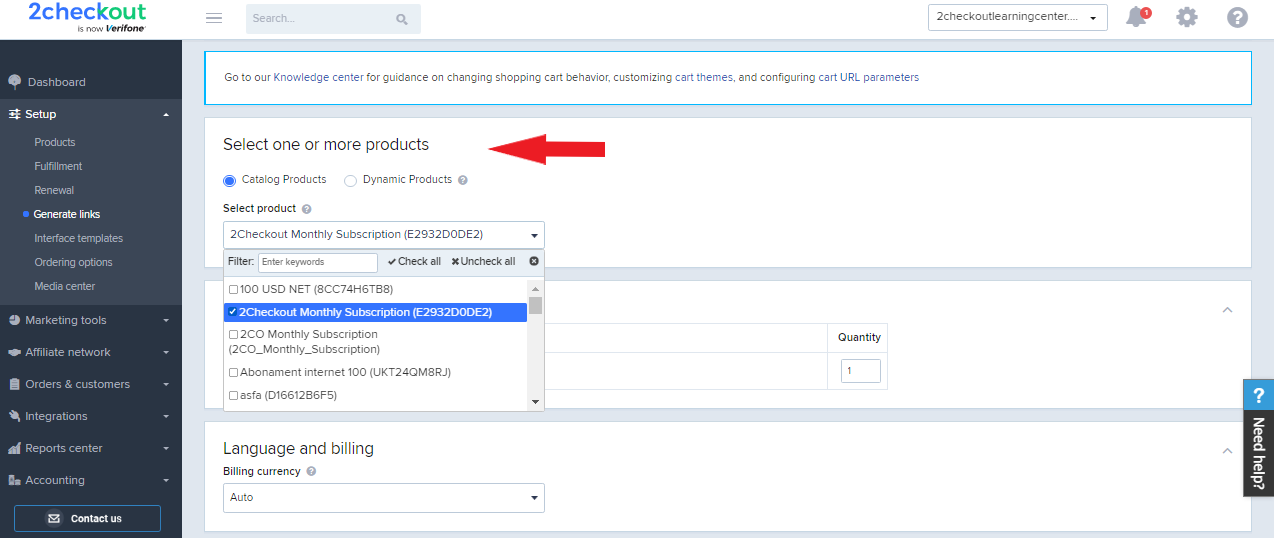
### Select products
Select **one or more products** from the dropdown list.
After selecting your product, a table will open under the selection field that allows you to modify the quantity for your product, its additional pricing options, or remove it from your selection.
{% endstep %}
{% step %}
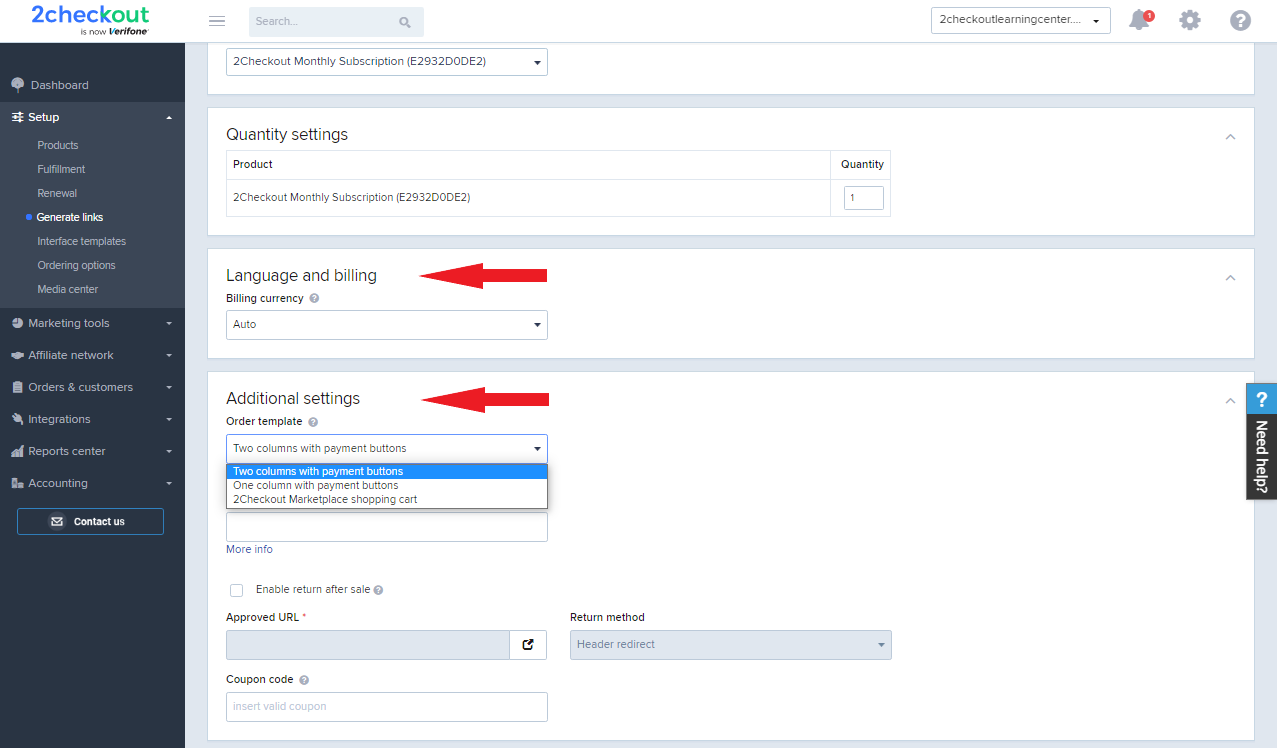
### Choose currency and template
Scroll down and select the **billing currency** and the **order template** you wish the shopping cart to be displayed with.
{% endstep %}
{% step %}
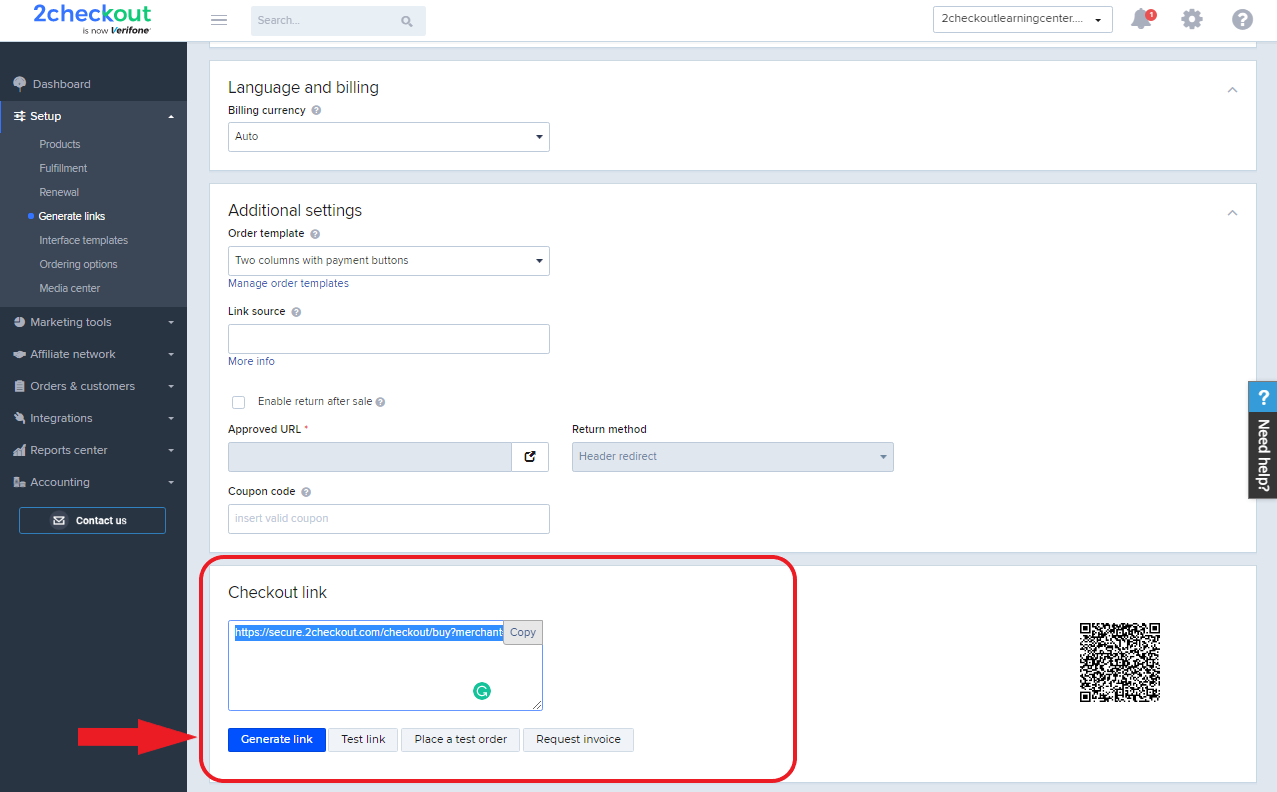
### Generate the link
Click on **Generate Link** in the **Checkout link** section at the bottom of the page to create your buy-link and place it on the call-to-action button on your online store.
{% endstep %}
{% endstepper %}
## Generate a buy-link for a single product using the InLine Checkout
Follow the steps below to generate a buy-link for one or more products using the InLine Checkout:
{% stepper %}
{% step %}
### Sign in to Merchant Control Panel
Log in to your 2Checkout account in the [Merchant Control Panel](https://secure.2checkout.com/cpanel).
{% endstep %}
{% step %}
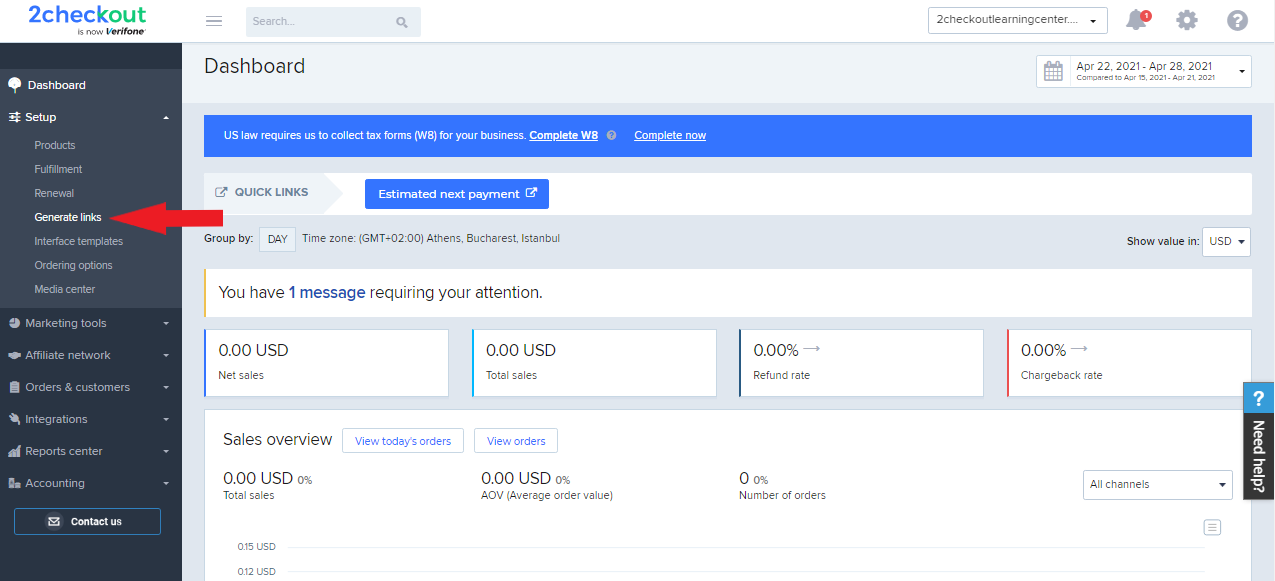
### Open Generate links
Navigate to **Setup** and click on [Generate links](https://secure.2checkout.com/cpanel/integration.php).
{% endstep %}
{% step %}
### Choose InLine Checkout
In the **Checkout links** tab, click on the **InLine Checkout** button.
{% endstep %}
{% step %}
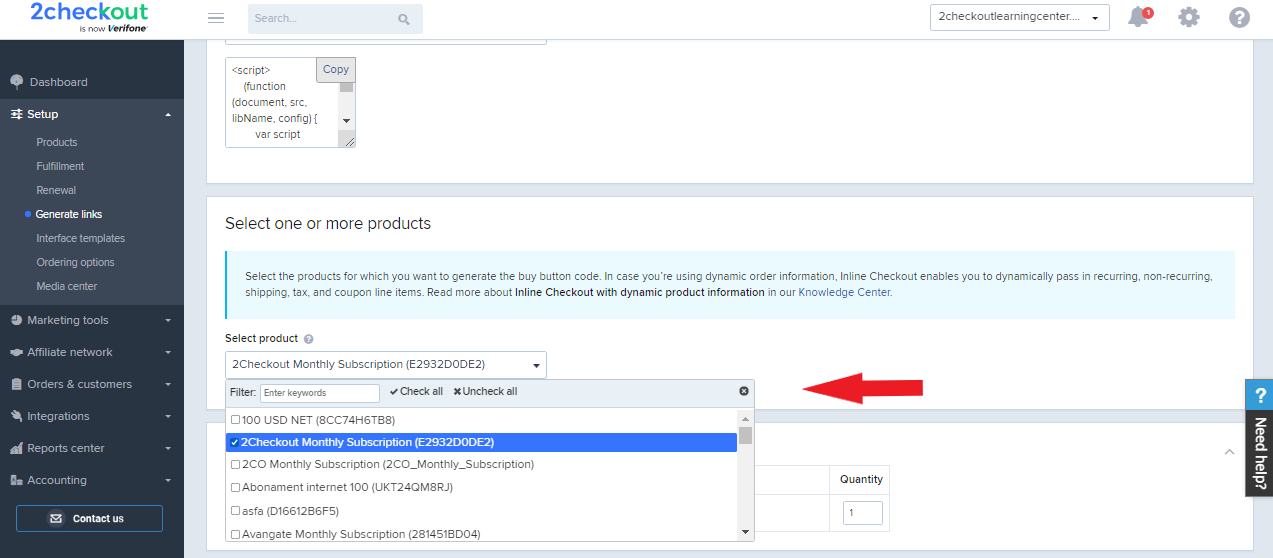
### Select products
Select **one or more products** from the dropdown list.
After selecting your product, a table will open under the selection field that allows you to modify the quantity for your product, its additional pricing options, or remove it from your selection.
{% endstep %}
{% step %}
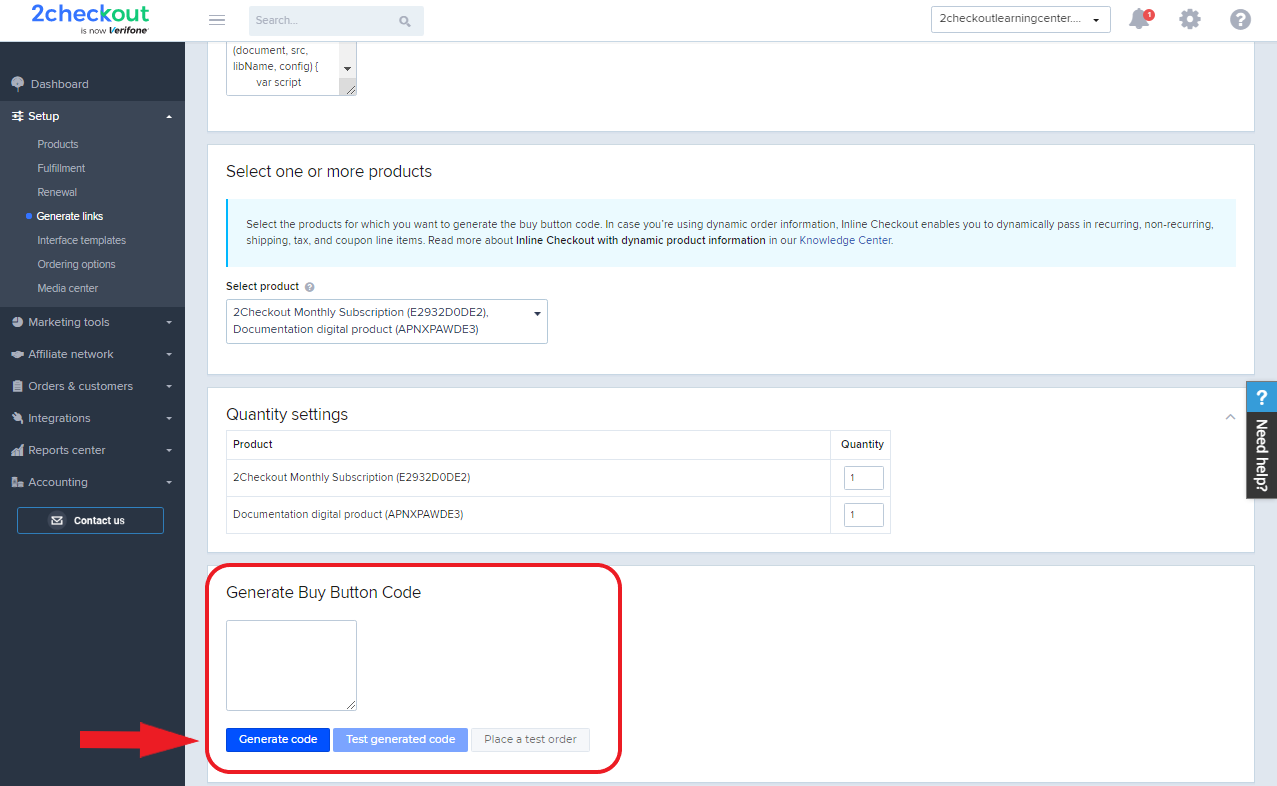
### Generate the buy button code
After selecting the products for which you're creating the buy-link, scroll down to the **Generate Buy Button Code** section and click on the **Generate code** button to create the buy-link and place it on the call-to-action button on your online store.
{% endstep %}
{% endstepper %}
---
# Agent Instructions
This documentation is published with GitBook. GitBook is the documentation platform designed so that both humans and AI agents can read, navigate, and reason over technical content effectively. Learn more at gitbook.com.
## Querying This Documentation
If you need additional information that is not directly available in this page, you can query the documentation dynamically by asking a question.
Perform an HTTP GET request on the current page URL with the `ask` query parameter, and the optional `goal` query parameter:
```
GET https://docs.2checkout.com/payment-link/create-a-payment-link/generate-a-buy-link-using-the-convertplus-and-inline-checkout.md?ask=&goal=
```
`ask` is the immediate question: it should be specific, self-contained, and written in natural language.
`goal` is optional and describes the broader end goal you are ultimately trying to accomplish on behalf of the user. GitBook uses it to tailor the answer towards what is most useful for that goal.
The response will contain a direct answer to the question and relevant excerpts and sources from the documentation.
Use this mechanism when the answer is not explicitly present in the current page, you need clarification or additional context, or you want to retrieve related documentation sections.
.png)