> For the complete documentation index, see [llms.txt](https://docs.2checkout.com/llms.txt). Markdown versions of documentation pages are available by appending `.md` to page URLs; this page is available as [Markdown](https://docs.2checkout.com/shopping-carts/default-flows/add-an-aftersale-message-for-your-shoppers.md).
# Add an AfterSale message for your shoppers
## Overview
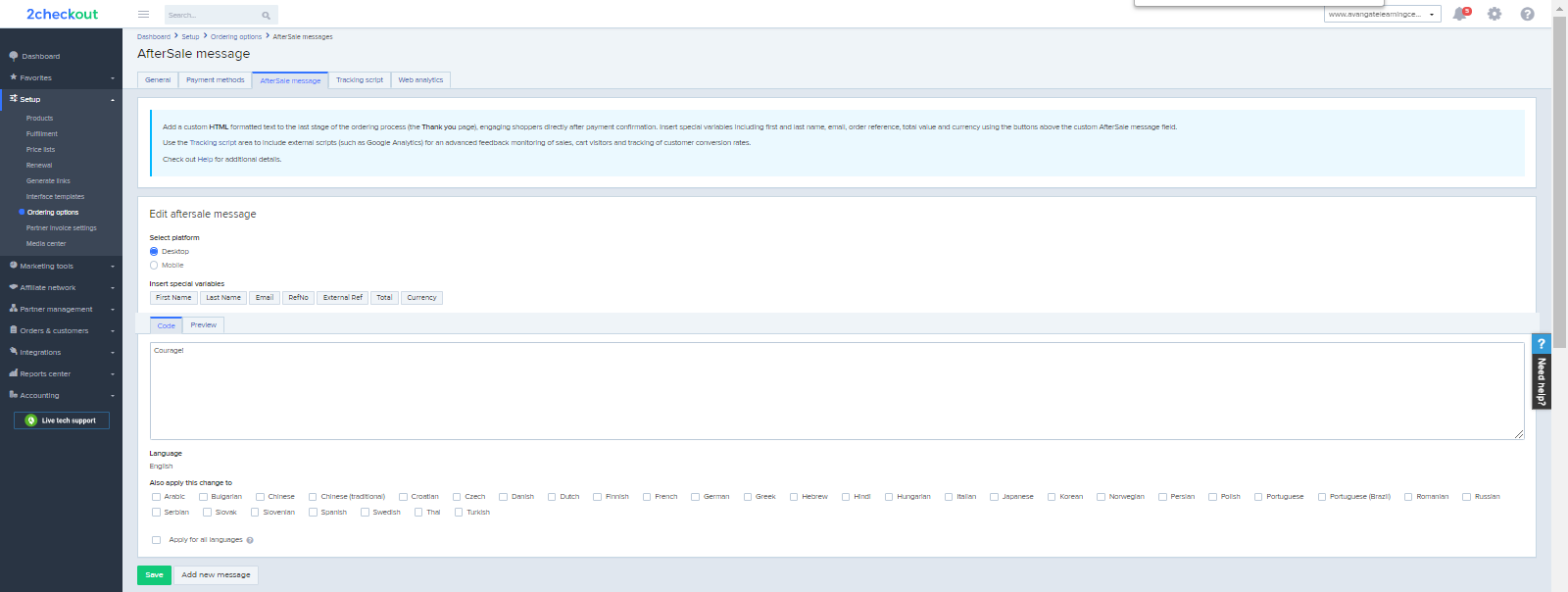
Add a custom **HTML** formatted text to the last stage of the ordering process (the **Thank You** page - finish.php), engaging shoppers directly after payment confirmation (transaction was authorized successfully). Insert special variables including first and last name, email, order reference, total value and currency using the buttons above the custom AfterSale Message field.
{% hint style="info" %}
Use the Tracking Script area to include external scripts (such as Google Analytics) for an advanced feedback monitoring of sales, cart visitors and tracking of customer conversion rates.
{% endhint %}
## Availability
* AfterSale messages for the desktop version of the shopping cart are available for all 2Checkout accounts.
* Setting AfterSale messages for mobile users requires an account with the 2Checkout shopping cart activated. Contact [2Checkout](/shopping-carts/convertplus/convertplus-checkout-with-review-page.md) directly for more details.
## What is the AfterSale message?
You can use this feature to reach out to shoppers who successfully placed an order with personalized messaging.
## When is the AfterSale message displayed to shoppers?
The AfterSale Message is displayed to customers only after they successfully place an order.
* Payment needs to be authorized successfully. This usually happens for online payment methods that are authorized instantaneously, such as credit/debit cards and PayPal.
* Payment needs to go through without any problems or errors.
## How do AfterSale Messages work?
1. Go to *Dashboard →**Setup** → **Ordering Options** →* [***AfterSale Message***](https://secure.avangate.com/cpanel/after_sale.php)*.*
2. Select the type of platform you want the message to be displayed for. AfterSale Messages need to be defined for each platform separately:
* Desktop
* Mobile
3. Use the Special Variables buttons to insert custom variables identifying the shopper placing the order, such as first and last name, email address, order reference number, total value, currency. Below is an example of an AfterSale Message.
4. You can use HTML formatting and tags and edit the code directly. You also have the option of previewing your message using the **Preview** button.
5. Select the language for your message. Use the **Apply for all languages** option to set the same message for all languages available for your account. Customers using a language for which you did not set an AfterSale message will not be offered the special messaging.
6. To edit AfterSale Messages, you need to edit each item individually. Selecting the **Apply for all languages** option will overwrite all existing messages with the latest text you supply.
7. Click **Save message**.
### AfterSale Message example
```html
Dear Mr./Mrs. <--{FIRST_NAME}--> <--{LAST_NAME}-->,
Thank you for choosing our services!
Your order reference number is <--{REFNO}--> with a total amount of
<--{TOTAL}--> <--{CURRENCY}-->.
Your e-mail address used for this order is <--{EMAIL}-->
```
## Display the AfterSale message for all orders
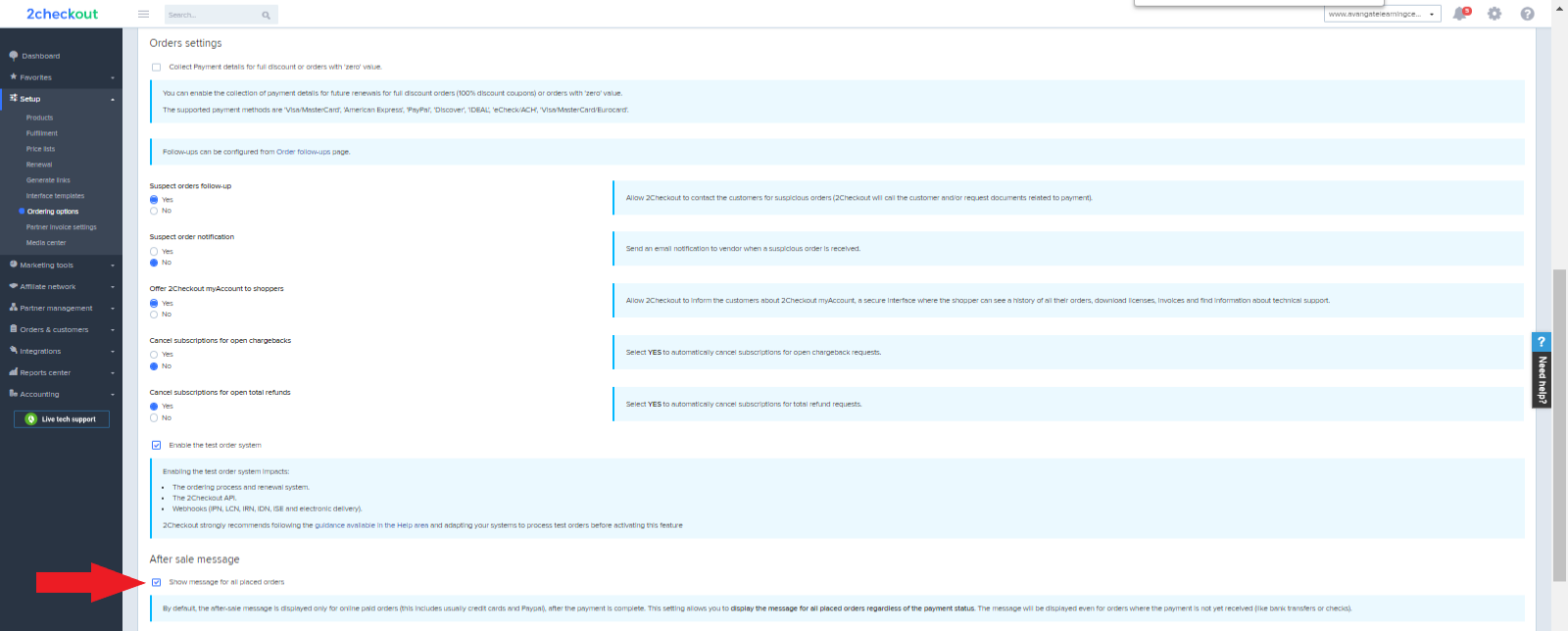
By default, the after-sale message is displayed only for orders with payments authorized instantly (this usually includes credit cards and PayPal), after the payment is complete (transaction needs to be authorized successfully). To display the message for all placed orders regardless of the payment status:
1. Go to *Dashboard →Setup* *→* [***Ordering Options***](https://secure.2checkout.com/cpanel/order_settings.php)*.*
2. Scroll down to the bottom of the **Order settings** area and check the checkbox for the **Show message for all placed orders** option.
3. Click **Save Settings**.
The message will be displayed even for orders where the payment is not yet received (like bank transfers or checks).
## FAQs
Is there a way to bypass the Thank You page and not display the AfterSale Message?
Yes. If you use a **Redirect URL** when generating buy-links, i.e. including the **BACK\_REF** parameter in buy-links together with a specific URL where shoppers are redirected after placing the order. Shoppers will be redirected to this URL after the payment is confirmed. The redirect URL replaces the default 'Thank you' page (except for offline payment methods such as Bank Transfer).
---
# Agent Instructions
This documentation is published with GitBook. GitBook is the documentation platform designed so that both humans and AI agents can read, navigate, and reason over technical content effectively. Learn more at gitbook.com.
## Querying This Documentation
If you need additional information that is not directly available in this page, you can query the documentation dynamically by asking a question.
Perform an HTTP GET request on the current page URL with the `ask` query parameter, and the optional `goal` query parameter:
```
GET https://docs.2checkout.com/shopping-carts/default-flows/add-an-aftersale-message-for-your-shoppers.md?ask=&goal=
```
`ask` is the immediate question: it should be specific, self-contained, and written in natural language.
`goal` is optional and describes the broader end goal you are ultimately trying to accomplish on behalf of the user. GitBook uses it to tailor the answer towards what is most useful for that goal.
The response will contain a direct answer to the question and relevant excerpts and sources from the documentation.
Use this mechanism when the answer is not explicitly present in the current page, you need clarification or additional context, or you want to retrieve related documentation sections.