> For the complete documentation index, see [llms.txt](https://docs.2checkout.com/llms.txt). Markdown versions of documentation pages are available by appending `.md` to page URLs; this page is available as [Markdown](https://docs.2checkout.com/shopping-carts/default-flows/additional-checkout-fields.md).
# Additional checkout fields
## Overview
Define additional checkout fields to be displayed in the shopping cart, helping you collect extra information from your shoppers. You can configure custom fields to be displayed at both product and order levels.
## Availability
This functionality is available for all 2Checkout accounts.
## How do I receive additional checkout fields?
Customer-specific information collected via custom additional fields is sent in several ways:
* in the "Order notification email" - sent by the 2Checkout system, information filled by your customers will be sent along with all the order information in the Additional Information section.
* in the "IPN (Instant Payment Notification)" - if this service is enabled, the additional fields are included in the HTTP POST sent by the 2Checkout system.
Additional checkout fields are not included by default in the IPN HTTP POST. To include these fields, as well as other additional order information you have to check CUSTOM\_FIELDS\[] on the [IPN Settings](https://secure.2checkout.com/cpanel/ipn_settings.php) page.
The following IPN variables are available:
### Additional checkout fields
| Field | Description |
| --------------------- | ------------------------------------------------------ |
| IPN\_CUSTOM\_TEXT\[] | Array with all the custom fields texts set per order. |
| IPN\_CUSTOM\_VALUE\[] | Array with all client input corresponding to the text. |
| **Example** | |
| IPN\_CUSTOM\_TEXT\[] | 0 - Where did you first hear about us? |
| | 1 - Would you like to receive regular updates? |
| IPN\_CUSTOM\_VALUE\[] | 0 - From a friend |
| | 1 - CHECKED |
### Product additional checkout fields (dynamic fields)
**Product name**: 123456\
**Product ID in the 2Checkout system**: 123456
| Field | Description |
| ----------------------------- | ------------------------------------------------------- |
| IPN\_CUSTOM\_123456\_TEXT\[] | array with all the custom fields texts set per product. |
| IPN\_CUSTOM\_123456\_VALUE\[] | array with all client input corresponding for the text. |
| **Example** | |
| IPN\_CUSTOM\_123456\_TEXT\[] | 0 - Product code |
| IPN\_CUSTOM\_123456\_VALUE\[] | 0 - 123456 |
Additional information can be found in the [Merchant Control Panel](https://secure.2checkout.com/cpanel/) in these sections:
* [IPN Settings](https://secure.2checkout.com/cpanel/ipn_settings.php)
* [Additional fields](https://secure.2checkout.com/cpanel/additional_fields.php)
### Create custom fields
1. Go to [**Setup** ](https://secure.2checkout.com/cpanel/order_settings.php)→[ **Ordering options**](https://secure.2checkout.com/cpanel/order_settings.php)**.**
2. Click [**Manage additional order fields**](https://secure.2checkout.com/cpanel/additional_fields.php)**.**
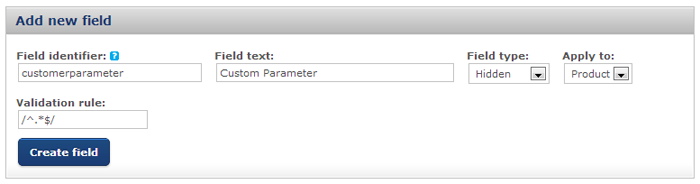
3. Use the **Add new field** section to define each new field. Enter the **Field identifier**. Use unique identifiers for all your fields. **Note**: This field accepts only alpha-numeric characters. If you leave this field empty, 2Checkout generates a random value as an identifier.
4. Enter the **Field text** (the name of the field).
5. Set the **Field type**. There are four available types.
* **Textbox** allows shoppers to write what they want in the field. You can use it to collect feedback or opinions on the shopping experience, for instance.
* **Checkbox** allows shoppers to select various options. You can use it for a quick survey.
* **Listbox** displays a drop-down list your shoppers can select items from.
* **Hidden** helps you define custom URL parameters for tracking purposes. For details on this option, read our [dedicated article](https://verifone.cloud/docs/2checkout/Documentation/07Commerce/Order-tracking/Track-sales-with-custom-parameters/).
6. Use the **Apply to** drop-down to choose whether the field should apply at the product or order level.
7. Use the **Validation rule** field to specify the regular expression to validate the field values. **Note:** Not supported on Inline Checkout. The field can be set, but it will be ignored during the checkout process.
8. Click **Create field** to save the new field.
## Set additional checkout fields for products
### Requirement
Follow the steps in the **Create custom fields** section to create new fields and apply them at the **Product** level. Then, follow the steps below to assign the field to a product.
1. Go to [**Setup** ](https://secure.2checkout.com/cpanel/products.php)→[ **Products**](https://secure.2checkout.com/cpanel/products.php).
2. Click **Edit** on the product you want to assign the field to.
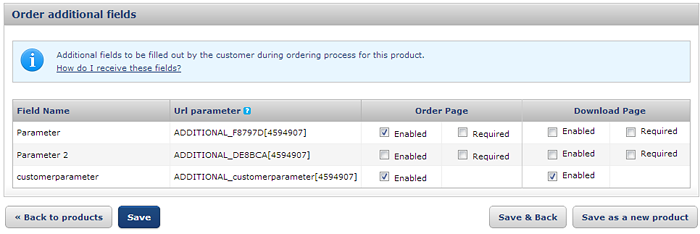
3. Go to the **Information** tab and scroll to the bottom of the screen. You'll find the previously defined additional fields in the **Order additional fields** section. All new fields are disabled by default.
4. Check the **Enabled** option on the **Order page** column corresponding to the field you want to use. Check the **Required** checkbox if you want the field to be mandatory during the checkout process.
5. Click **Save**.
## Set additional checkout fields for orders
### Requirement
Follow the steps in the **Additional fields settings** page in your Merchant Control Panel to create new fields and apply them at the **Order** level. Then, follow the steps below to assign the field to order.
1. Go to [**Setup**](https://secure.2checkout.com/cpanel/products.php) **→** [**Ordering options**](https://secure.2checkout.com/cpanel/order_settings.php).
2. Scroll down to the **Additional order fields section** and got to the [Click here to create and manage](https://secure.2checkout.com/cpanel/additional_fields.php) link.
3. To create a new additional field, follow these steps:
* Go to the **Add new field** section
* Fill in all the fields displayed
* Click **Create field** to save the new field.
4. To edit an existing additional field, you need to:
* Go to *Dashboard → Setup → Ordering options → Additional fields settings*
* Scroll below the Additional fields settings section
* Choose the field you want to modify and update its fields.
* Scroll to the bottom of the page and click **Update fields** to save your new settings.
5. To delete an additional field, leave the field empty and click on the **Update fields** button. Those fields assigned to products will be deleted as well.
6. To activate an existing additional field, see the steps below:
* Go to *Dashboard → Setup → Ordering options → General*
* Scroll down below the **Additional order fields** section.
* In the **list of additional fields**, check the checkbox next to the field you want to use.
* Check the **Required** checkbox if you want the field to be mandatory during the checkout process.
* Click **Save Settings** at the bottom of the page.

### Additional field types
* **Textbox** - a text field that allows the customer to enter text information about the additional field.
* **Checkbox** - a small checkable box that allows the customer to enable or disable an element. It can be checked or left empty.
* **Listbox** - it displays a scroll-down list of elements that allow the customer to select one or more items from the list contained within the static text box.
* **Hidden** - it cannot be seen or modified by customers.
## Pre-fill additional information fields
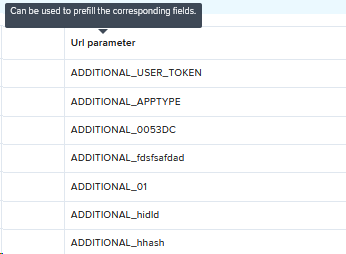
You can pre-fill the additional information fields by passing the \&ADDITIONAL parameter in the URL.
The parameter would look like this: \&ADDITIONAL\_(insert additional field identifier here)\[product id]=(insert value here).
For example, if you want to pre-fill the additional information field with 'test.com', your checkout buy-link would look like this:
```
&ADDITIONAL_92E8A6[4674306]=test.com
```
Where ADDITIONAL\_92E8A6 is the URL parameter as shown in your Merchant Control Panel.
---
# Agent Instructions
This documentation is published with GitBook. GitBook is the documentation platform designed so that both humans and AI agents can read, navigate, and reason over technical content effectively. Learn more at gitbook.com.
## Querying This Documentation
If you need additional information that is not directly available in this page, you can query the documentation dynamically by asking a question.
Perform an HTTP GET request on the current page URL with the `ask` query parameter, and the optional `goal` query parameter:
```
GET https://docs.2checkout.com/shopping-carts/default-flows/additional-checkout-fields.md?ask=&goal=
```
`ask` is the immediate question: it should be specific, self-contained, and written in natural language.
`goal` is optional and describes the broader end goal you are ultimately trying to accomplish on behalf of the user. GitBook uses it to tailor the answer towards what is most useful for that goal.
The response will contain a direct answer to the question and relevant excerpts and sources from the documentation.
Use this mechanism when the answer is not explicitly present in the current page, you need clarification or additional context, or you want to retrieve related documentation sections.