> For the complete documentation index, see [llms.txt](https://docs.2checkout.com/llms.txt). Markdown versions of documentation pages are available by appending `.md` to page URLs; this page is available as [Markdown](https://docs.2checkout.com/shopping-carts/inline/inline-checkout-ordering-engine.md).
# InLine Checkout ordering engine
## Overview
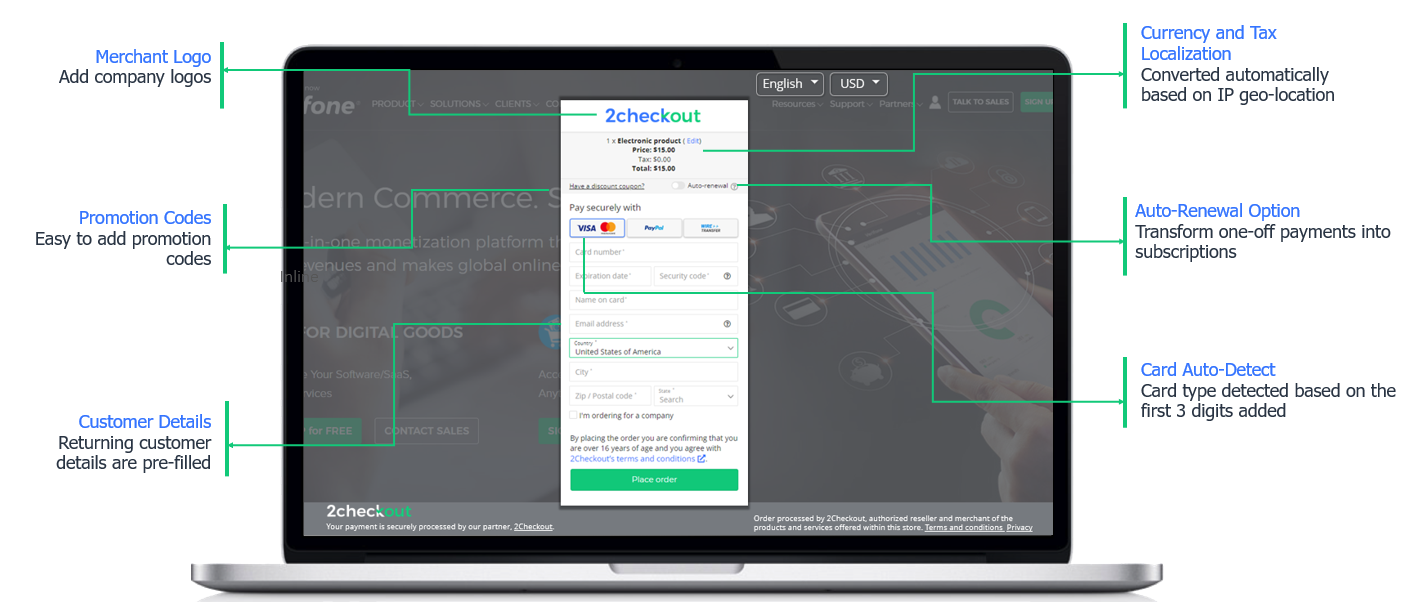
**InLine Checkout** acts as an iframe that opens on your website, enabling you to receive payments without redirecting your customers to a third party checkout.
Integrate InLine Checkout and:
* Offer your customers the possibility of purchasing using mobile devices with a **responsive cart design**, which renders well on a variety of devices and screen sizes.
* **Improve your localization strategy**, with a cart translated into 29 languages, and +130 transactional currencies for displaying the price.
* **Minimize the customer effort** during the purchase by passing the collected billing/shipping information to InLine Checkout.
InLine Checkout integrates ideally with shopping cart applications that collect customer billing and shipping information, allowing you to pass that information over to the cart and minimize customer's efforts during the payment process.
{% hint style="info" icon="lightbulb" %}
#### Our InLine Checkout enables you to offer a seamless checkout experience for your clients. Download this solution brief to learn how!
Read more
{% endhint %}
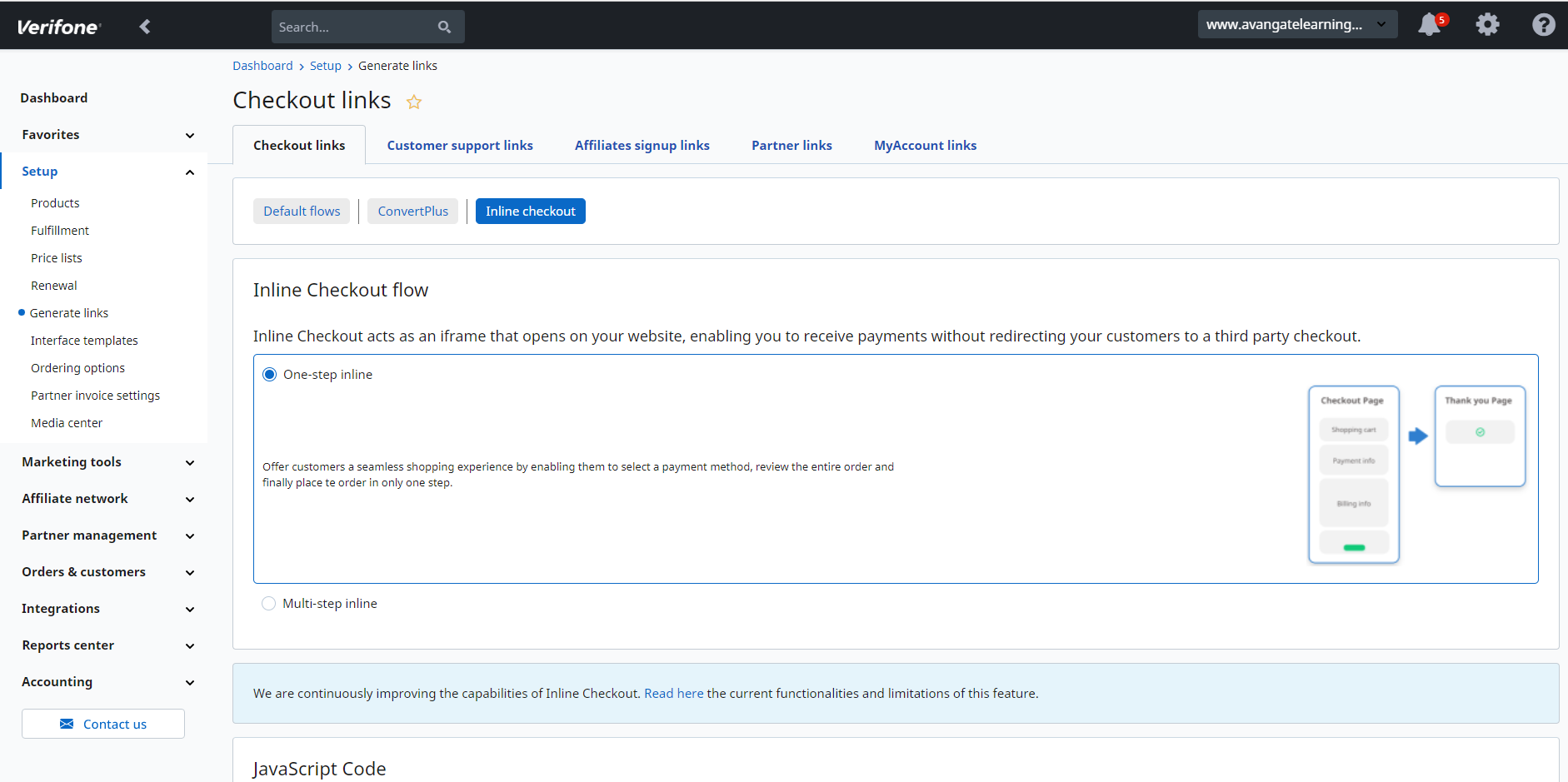
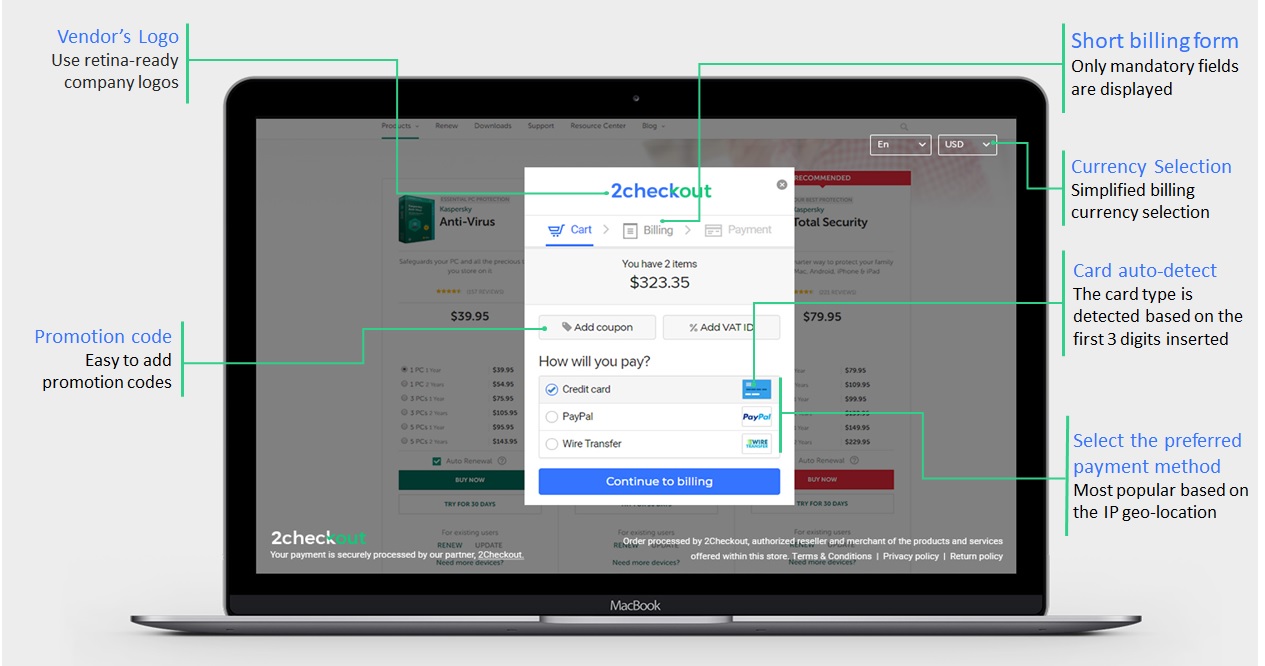
Moreover, in order to anticipate the particular needs of each of your customers, 2Checkout makes available in merchant cPanel two inline checkout flows that you may choose from, **a One-Step** and **a Multi-Step InLine cart**, depending on the shopping experience you want your customers to benefit from via this iframe.
**One-Step InLine** is the default checkout flow comprising all the billing, delivery and payment details in one step. This way, your customers can easily review all their purchase-related details and place the order with one click.
However, you can easily switch to a **Multi-Step InLine Checkout flow** if some of your customers would rather stick to a step-by-step payment process and fill-in their order details on separate cart pages.
## Availability
InLine Checkout is available for accounts that have [ConvertPlus](/shopping-carts/convertplus.md) enabled on their account. Contact 2Checkout for activation.
## Dynamic product information
InLine Checkout enables you to receive payments without having products defined in your 2Checkout Control Panel. Send the product information dynamically to InLine Checkout, and receive payments without the need for a product catalog in 2Checkout.
## How to integrate InLine Checkout
To integrate InLine Checkout with your shopping cart, follow the steps below.
{% stepper %}
{% step %}
#### Generate and insert the JavaScript code
* Go to *Setup →* [*Generate links area*](https://secure.2checkout.com/cpanel/integration.php)
* Click the **InLine** **Checkout** tab.
* Copy the **JavaScript code snippet** generated by our platform and paste it into your eCommerce website (you can paste it either inside the tag or inside the page body right before the closing tag of your HTML page).
You can choose one of the scripts below according to your preferred cart-flow length.
**One-Step InLine**:
```javascript
```
**Multi-Step InLine**:
{% code title="multi-step-inline.js" %}
```javascript
```
{% endcode %}
Your merchant code (you can find it in your merchant Control Panel, Dashboard → Integrations → Webhooks and API → API section) is automatically added by the system when you generate the JavaScript code library shown above, in the XXXXXXX string.
After you integrate the InLine Checkout JavaScript code in your HTML page, you get access to the library that allows you to add products, control billing and shipping details, and start the checkout process (see the JavaScript API reference [here](/shopping-carts/inline/inline-checkout-methods-and-parameters.md)).
{% endstep %}
{% step %}
#### Add a buy button on your website
* Navigate to the merchant Control Panel → Setup → Generate links
* Click on the **InLine** **Checkout** tab
* Select a product from the drop-down list in the 'Select one or more products' section
* Provide the desired quantity in the “Quantity settings” section
* Click on the **Generate code** button at the bottom of the page
* Copy the link and paste it into your HTML page
{% endstep %}
{% step %}
#### Start the Checkout process
Starting the checkout process will display the payment overlay and the inline cart on your website.
{% endstep %}
{% endstepper %}
### Sample request
The below request represents a basic use of InLine Checkout, that allows your users to finalize purchases directly from your website via a secure payment form.
```java
TwoCoInlineCart.setup.setMerchant('merchantCode'); // your Merchant code
TwoCoInlineCart.products.add({
code: 'the-2co-product-code',
quantity: 3
}); // add products to cart
TwoCoInlineCart.cart.checkout(); // start checkout process
```
---
# Agent Instructions
This documentation is published with GitBook. GitBook is the documentation platform designed so that both humans and AI agents can read, navigate, and reason over technical content effectively. Learn more at gitbook.com.
## Querying This Documentation
If you need additional information that is not directly available in this page, you can query the documentation dynamically by asking a question.
Perform an HTTP GET request on the current page URL with the `ask` query parameter, and the optional `goal` query parameter:
```
GET https://docs.2checkout.com/shopping-carts/inline/inline-checkout-ordering-engine.md?ask=&goal=
```
`ask` is the immediate question: it should be specific, self-contained, and written in natural language.
`goal` is optional and describes the broader end goal you are ultimately trying to accomplish on behalf of the user. GitBook uses it to tailor the answer towards what is most useful for that goal.
The response will contain a direct answer to the question and relevant excerpts and sources from the documentation.
Use this mechanism when the answer is not explicitly present in the current page, you need clarification or additional context, or you want to retrieve related documentation sections.